
Appearance
Payment Methods
Payment methods define how customers can pay for their orders during checkout. From the admin panel you can create and manage multiple payment methods — each with its own type, status, and country availability. The methods you configure here appear as selectable options on the storefront checkout page.
Capyshop supports three payment method types:
| Type | Description |
|---|---|
| Pay on Delivery | Customer pays in cash or card when the order is delivered |
| Manual Payment | Customer pays via bank transfer or another offline method |
| Payment Service Provider | Online payment processed through a PSP integration (e.g., Stripe) |
Browsing your payment methods
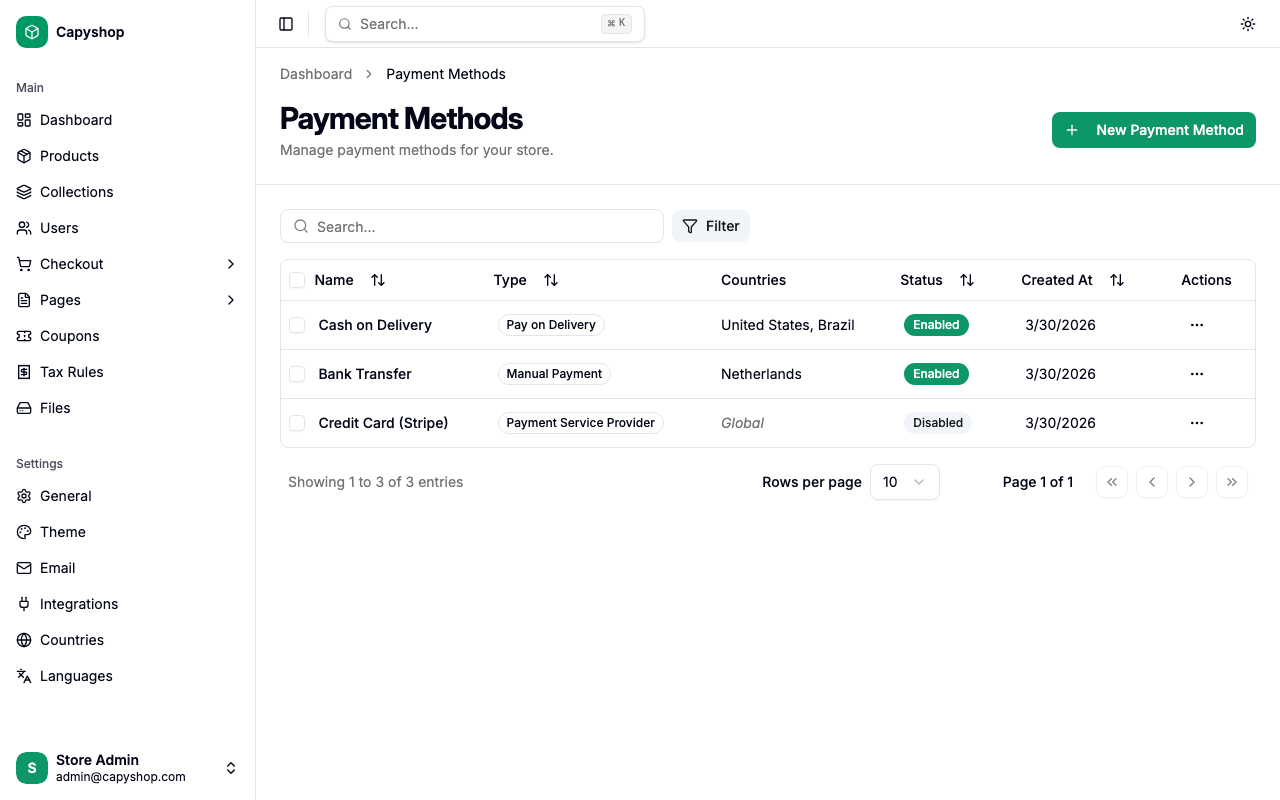
Open Payment Methods in the admin sidebar (under Checkout) to see the full list. The table displays each method's name, type, countries, status, and creation date.
| Column | Description |
|---|---|
| Name | Payment method name (click to edit) |
| Type | One of: Pay on Delivery, Manual Payment, or Payment Service Provider |
| Countries | Comma-separated list of countries, or Global if no countries are selected |
| Status | Enabled (available at checkout) or Disabled |
| Created At | Date the method was created |
| Actions | Dropdown with Edit and Delete options |
You can sort by clicking any column header, search by typing in the search bar, and filter by country using the Filter button.
Creating a payment method
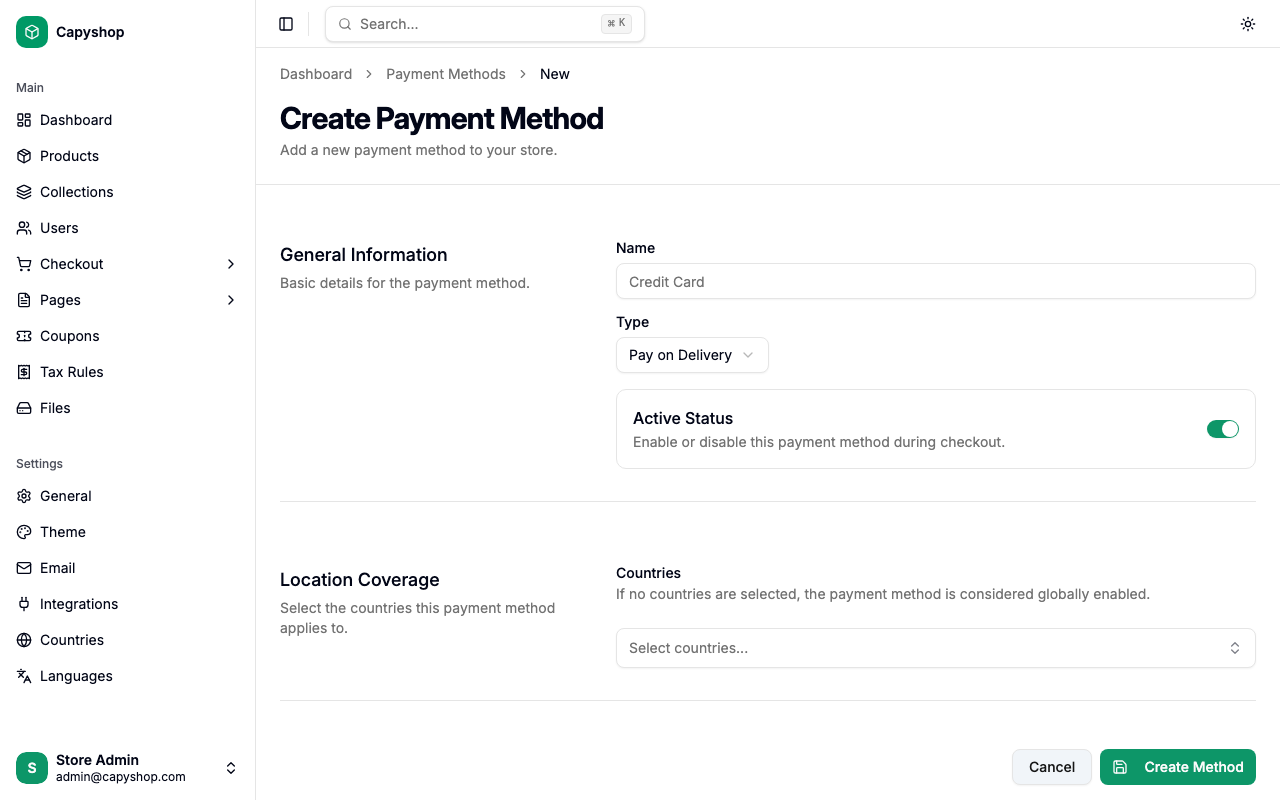
Click New Payment Method on the list page to open the creation form.
General information
| Field | Required | Description |
|---|---|---|
| Name | Yes | The name shown to customers at checkout (e.g., "Credit Card", "Cash on Delivery") |
| Type | Yes | Choose between Pay on Delivery, Manual Payment, or Payment Service Provider |
| Active Status | No | Toggle to enable or disable this method at checkout. Enabled by default |
Important: To create a Payment Service Provider method, you must first enable the PSP integration in Settings > Integrations and provide your API keys. If the integration is disabled, the form will show a warning and prevent saving.
Location coverage
| Field | Required | Description |
|---|---|---|
| Countries | No | Select which countries this method is available in. If no countries are selected, the method is considered globally available |
Editing a payment method
Click any method name in the list (or choose Edit from the actions dropdown) to open the edit form. It contains the same fields as the creation form, pre-populated with the current data.
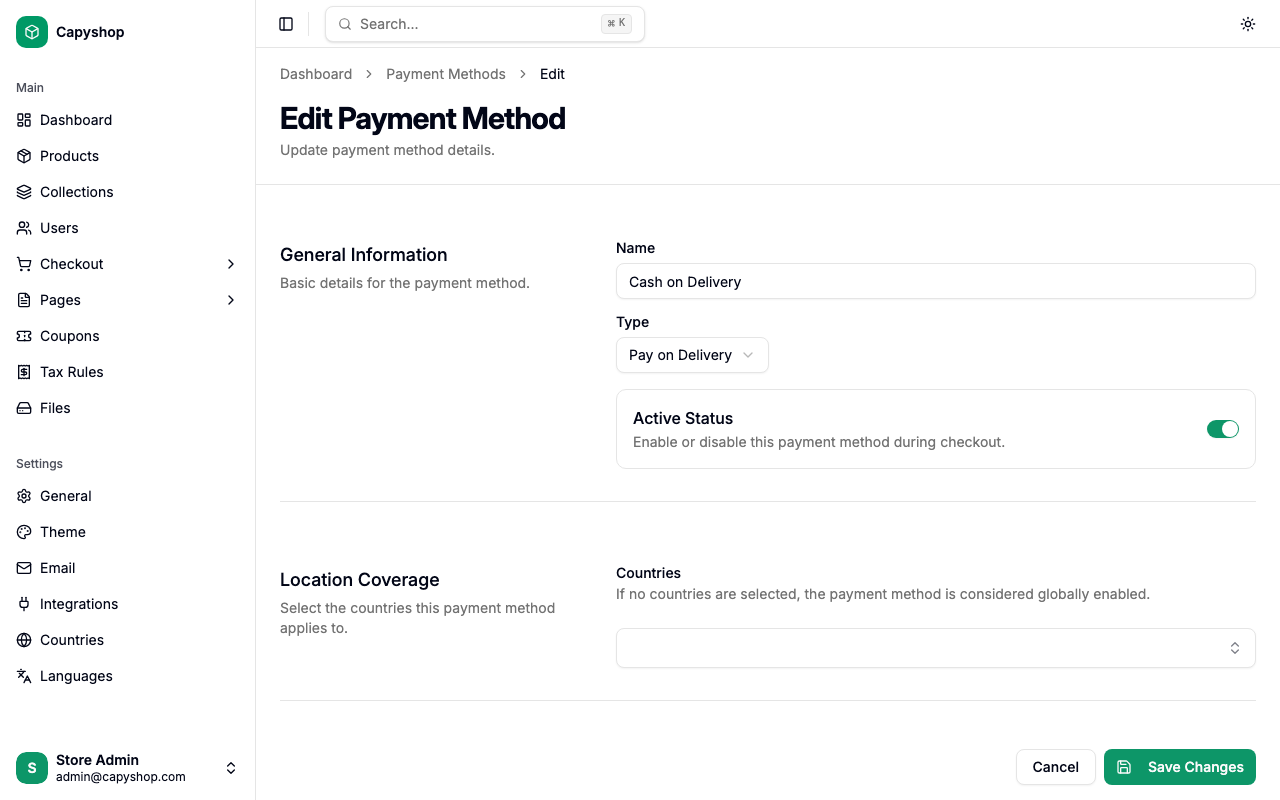
Click Save Changes when you are done.
Deleting a payment method
To delete a payment method, click the actions dropdown on the row and select Delete. A confirmation dialog will appear before the method is permanently removed.
Billing address at checkout
Before the payment step, customers go through a Billing address step. By default the Billing same as shipping option is on and no extra input is needed. Customers who need a separate billing address — different invoicing entity, gift recipient, etc. — turn the option off and either pick one of their saved addresses or enter a new one. A checkbox lets them save a custom billing address to the address book for future orders.
The billing country is what drives tax calculation (see Tax rules) and payment-method filtering. When the customer changes their billing country, the currently selected payment method is cleared and any in-flight Stripe PaymentIntent is cancelled, so the next payment is created with the right country and tax in place.
How payment methods appear on the storefront
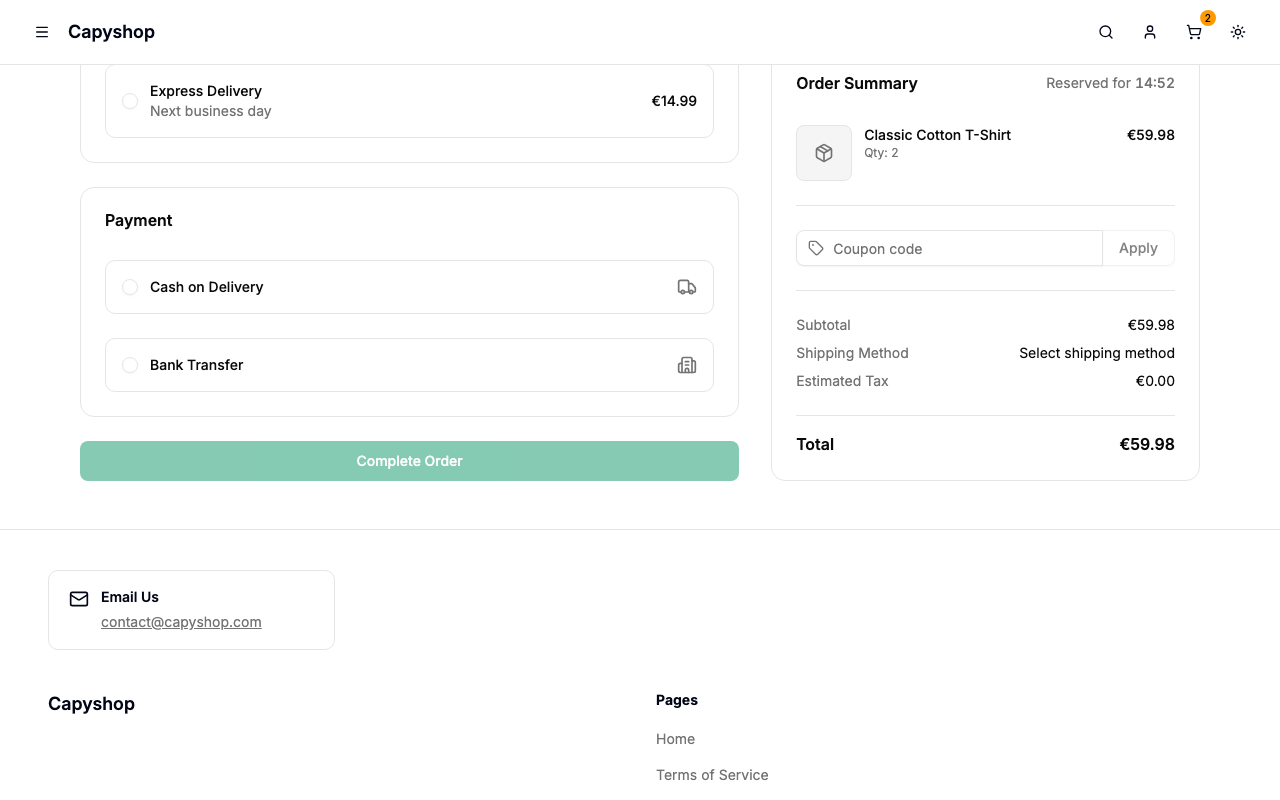
During checkout, after a customer confirms their shipping and billing addresses, the available payment methods are displayed as selectable cards in the Payment section.
| Admin setting | Storefront behavior |
|---|---|
| Name | Displayed as the card label |
| Type | Determines the icon shown (truck for Pay on Delivery, building for Manual Payment, credit card for PSP) |
| Active Status | Only enabled methods are shown |
| Countries | Only methods matching the customer's billing country (or globally available methods) are displayed. When "billing same as shipping" is on, the shipping country is used. |
Pay on Delivery and Manual Payment
These methods require no additional input from the customer. Selecting one and clicking Complete Order creates the order with a Pending Payment status. The store owner is responsible for confirming payment manually.
Payment Service Provider (Stripe)
When a customer selects a PSP method, a secure Stripe payment form appears below the payment method cards. The customer enters their card details directly in the Stripe form and clicks Complete Order. The order is created with Pending Payment status and automatically updated to Paid once Stripe confirms the payment via webhook.
Tip: To set up Stripe payments, go to Settings > Integrations, enable the PSP integration, and enter your Stripe Secret Key, Publishable Key, and Webhook Secret. See the Stripe documentation for how to obtain these keys.