
Appearance
Product Variants
Variants let you sell different versions of the same product — sizes, colors, volumes, or materials — from a single listing. Each variant carries its own price, stock, SKU, and images, and customers pick one before adding to basket.
When to use variants
Use variants when a product comes in options that affect price or inventory. A T-shirt sold in Small, Medium, and Large is a great fit; so is a candle sold in 200ml and 500ml, or a pair of shoes in S, M, L, and XL.
If the options don't affect price or stock, a plain product with characteristics is usually simpler.
Step 1 — Open a product
Open Products in the admin sidebar, pick a product, and scroll down to the Variants section at the bottom of the form.
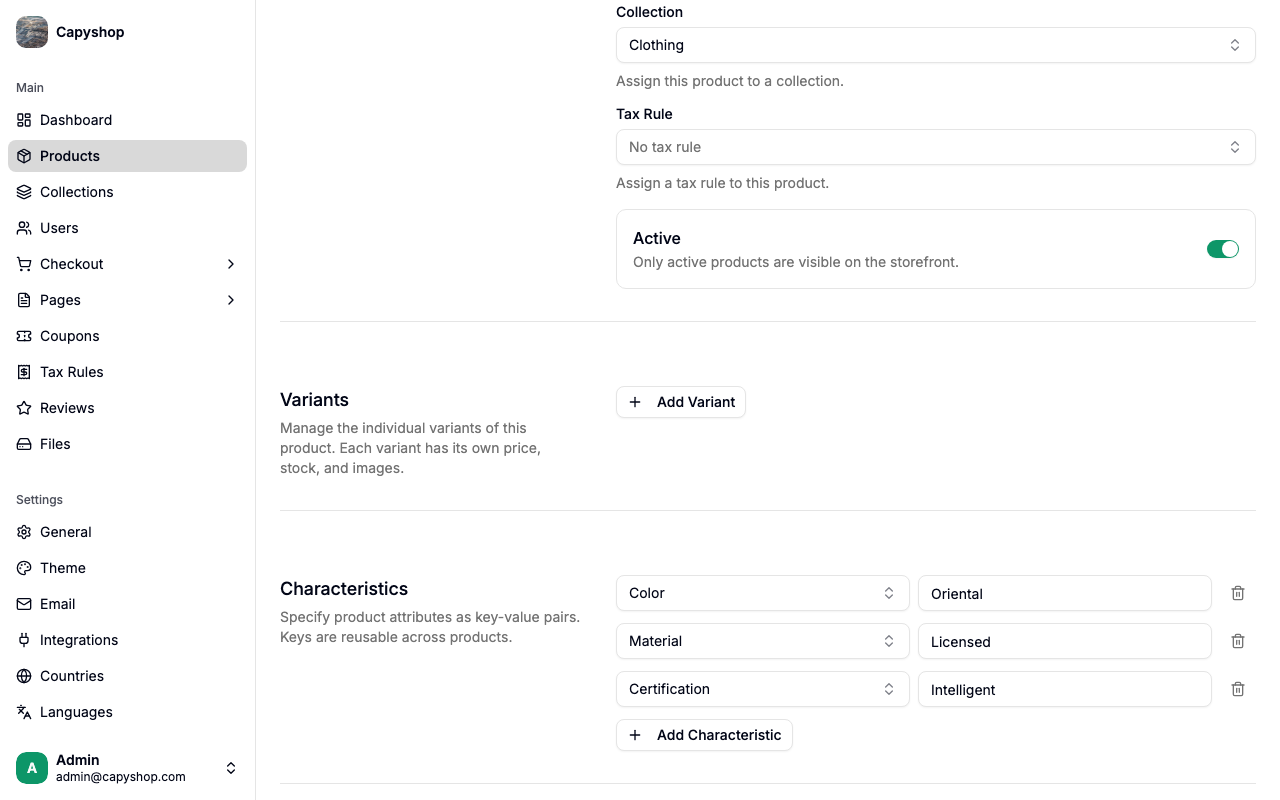
On a product with no variants, you'll see a short description and a single Add Variant button. The product itself keeps its own price, stock, and SKU as long as no variants exist.
Step 2 — Add a variant
Click Add Variant to open the Create Variant form. The title, description, collection, tax rule, and characteristics are pre-filled from the parent product so you only have to fill in what's different.
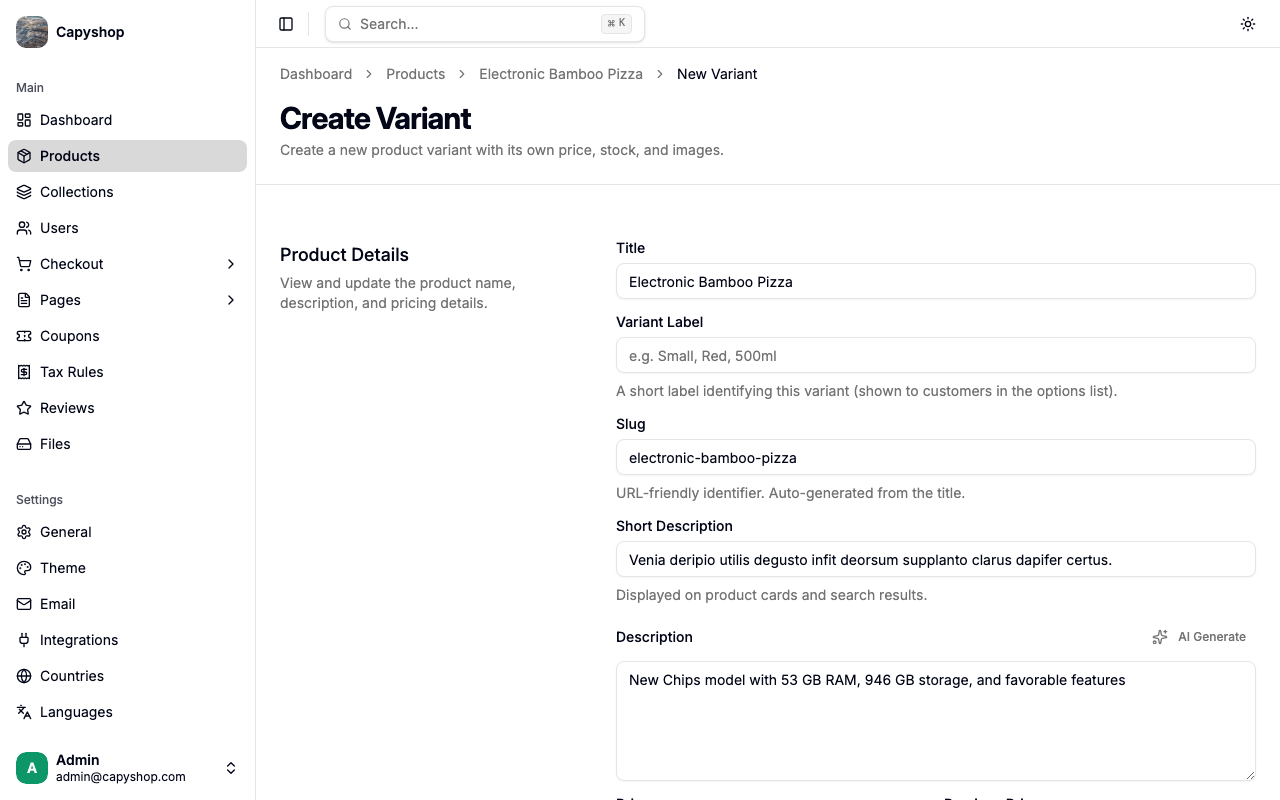
| Field | Required | Notes |
|---|---|---|
| Variant Label | Yes | Short label shown to customers in the options list (e.g. Small, Red, 500ml) |
| Title | Yes | Pre-filled from the parent; edit if this variant needs a different name |
| Slug | Yes | URL-friendly identifier, auto-generated from the title |
| Short Description | No | Appears on product cards and search results |
| Description | Yes | Full description; can differ from the parent |
| Price | Yes | Price for this specific variant |
| Previous Price | No | Optional sale price crossed out on the storefront |
| Stock | Yes | Inventory tracked independently from other variants |
| SKU | No | Optional stock-keeping unit unique to this variant |
| Active | No | Only active variants appear on the storefront |
| Media | No | Upload images specific to this variant; falls back to the parent's images if omitted |
Tip: Set Active once the variant is ready to sell. Inactive variants stay in the admin for later but never show up to customers.
Click Create Variant to save. You'll be returned to the parent product's edit page with the new variant listed.
Step 3 — Manage variants
Once a product has variants, the Variants section shows them in a table with their label, price, stock, SKU, and status.
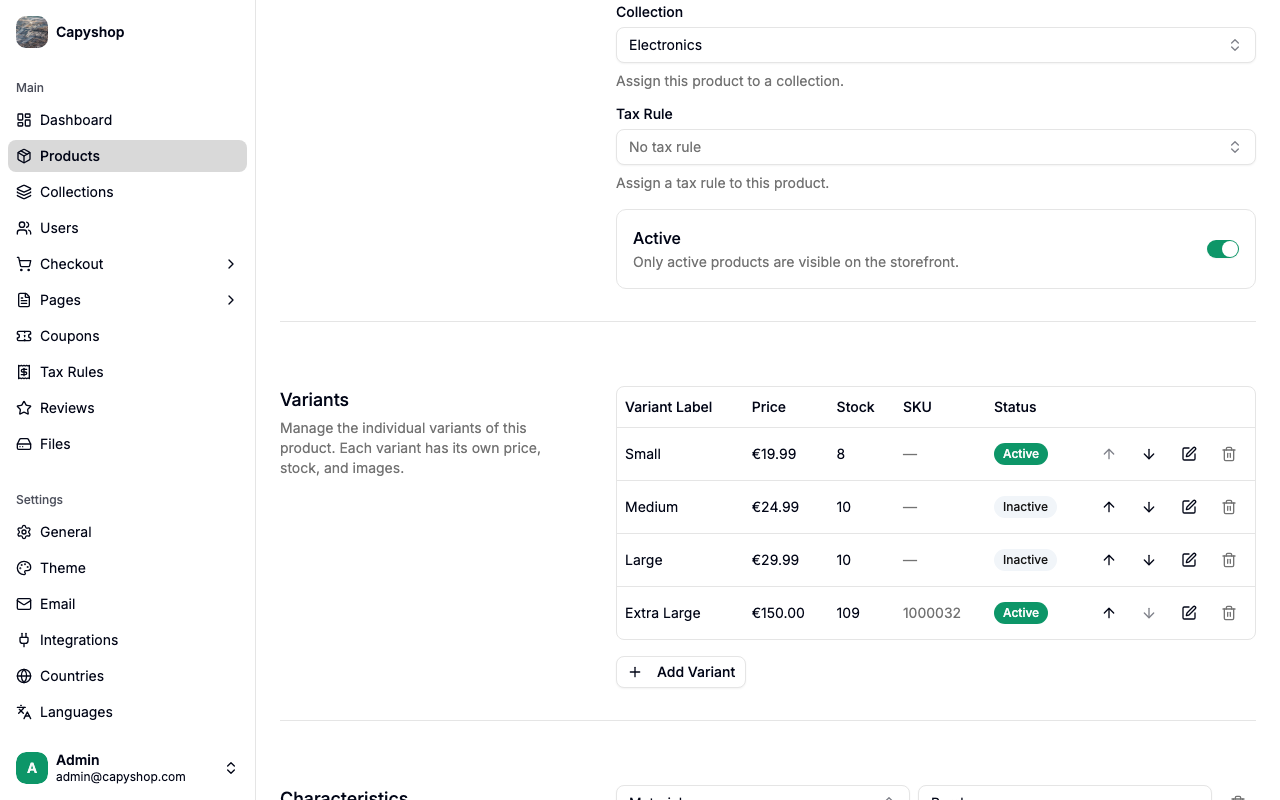
| Column | Description |
|---|---|
| Variant Label | The label shown to customers |
| Price | Variant price in the store's currency |
| Stock | Independent stock for this variant |
| SKU | Variant SKU, or — if empty |
| Status | Active or Inactive badge |
| Actions | Move up, move down, edit, and delete buttons on each row |
Use the up and down arrows to reorder variants — the order in this table is the order customers see on the storefront. Click the pencil to edit a variant (the edit form is identical to create) and the trash icon to delete one. Deleting a variant permanently removes it; there's no soft-delete.
Important: Once a product has at least one variant, the parent's own Price, Stock, and SKU are no longer used. Those values live on each variant instead. The i18n hint under those fields will tell you the same when you're editing the parent.
How customers see it
On the storefront, a product with variants displays an Options block with one chip per active variant.
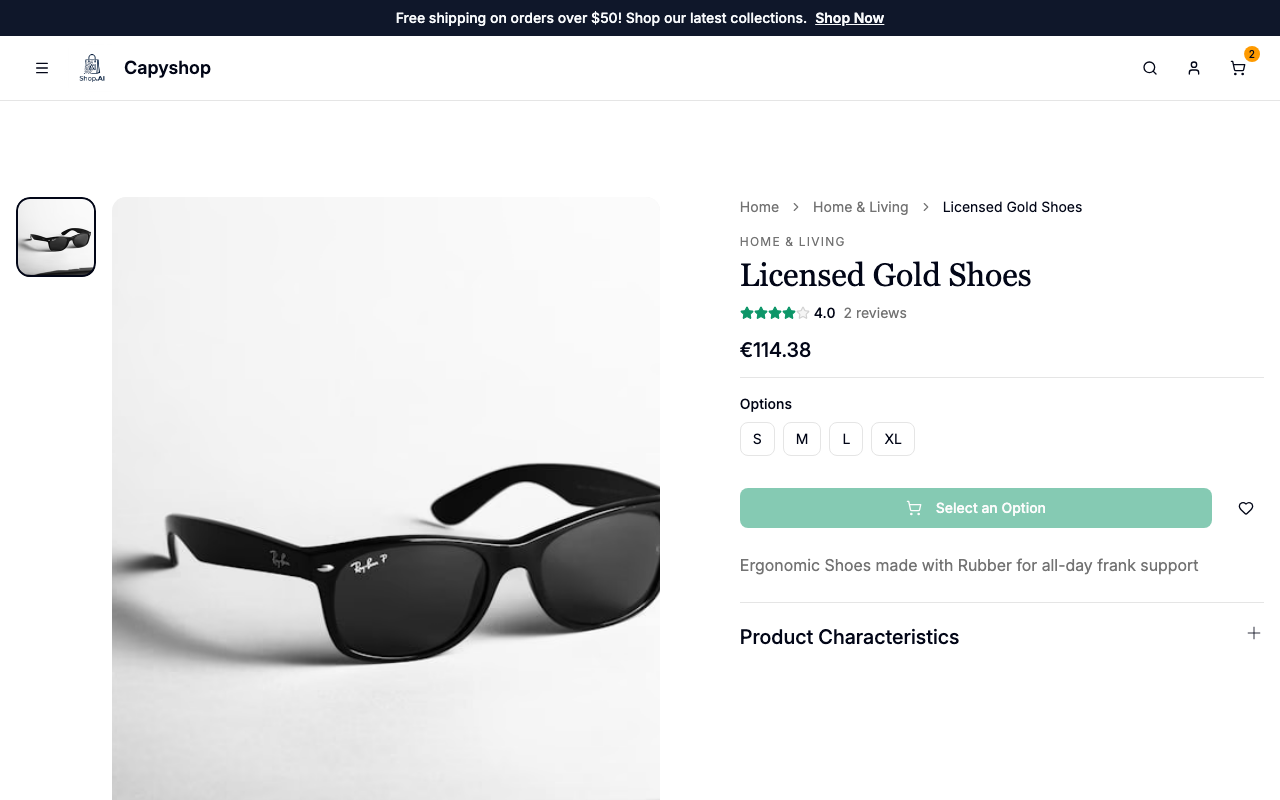
The Add to Basket button is disabled on the parent page and reads Select an Option until the customer clicks a chip. Out-of-stock variants render grayed out with a strike-through and aren't clickable.
Clicking a chip takes the customer to that variant's own page, where the chip is highlighted, the price and media update, and the button becomes a real Add to Basket.
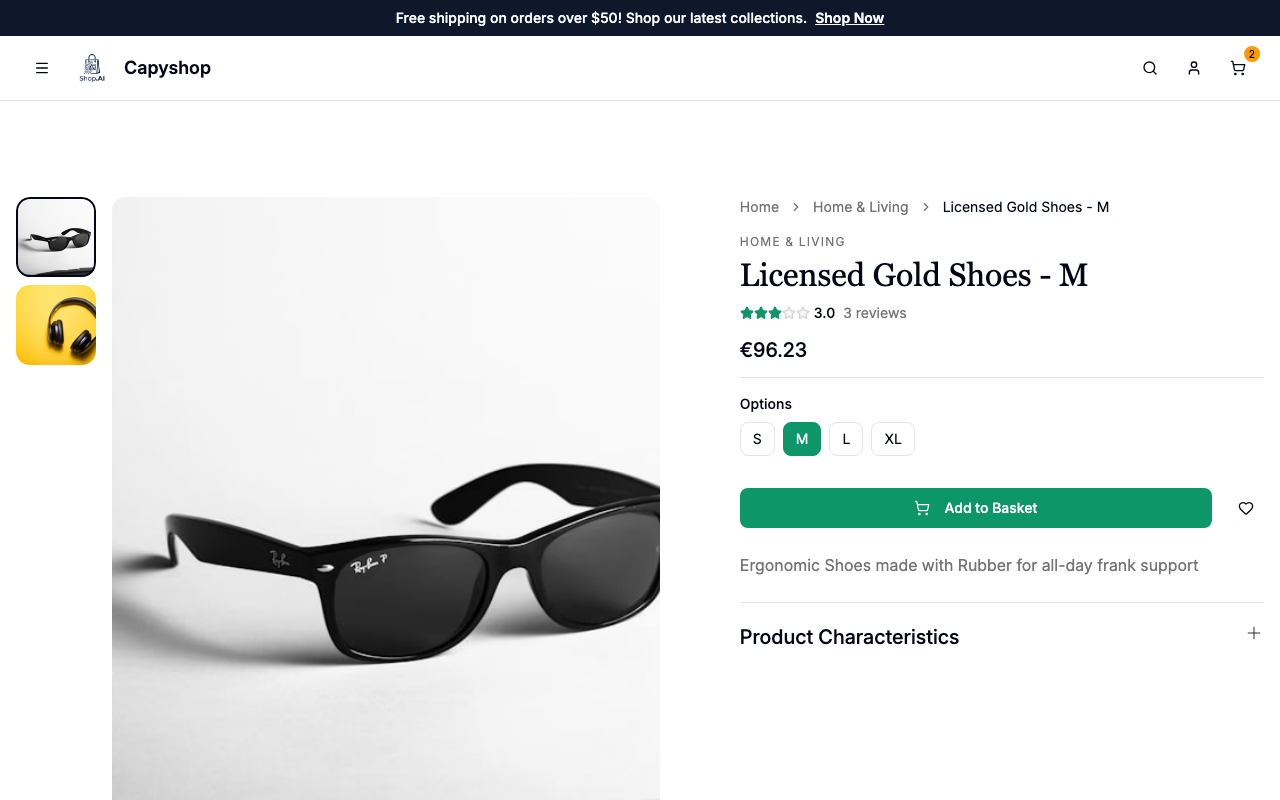
From here, customers can switch between siblings by clicking another chip or add the selected variant straight to their basket.
Orders and stock
Every cart item, order item, and stock decrement happens against the specific variant the customer picked — not the parent. That means:
- Stock on
Largecan sell out whileSmallis still available, with no manual bookkeeping. - Orders record the variant's own price at the time of purchase, so raising a variant's price later doesn't retroactively change past orders.
- Reports and exports show each variant as its own line item, identified by its variant label.