
Appearance
Coupons
Coupons let you offer discounts to your customers during checkout. You can create percentage-based or fixed-amount coupons that apply to the entire order, a specific product, or the shipping cost. Each coupon has a unique code that customers enter at checkout to receive the discount.
Capyshop supports three discount types:
| Discount Type | What It Discounts |
|---|---|
| Order Discount | Reduces the order subtotal (before shipping and tax) |
| Product Discount | Reduces the price of a specific product in the cart |
| Shipping Discount | Reduces the shipping cost |
Browsing your coupons
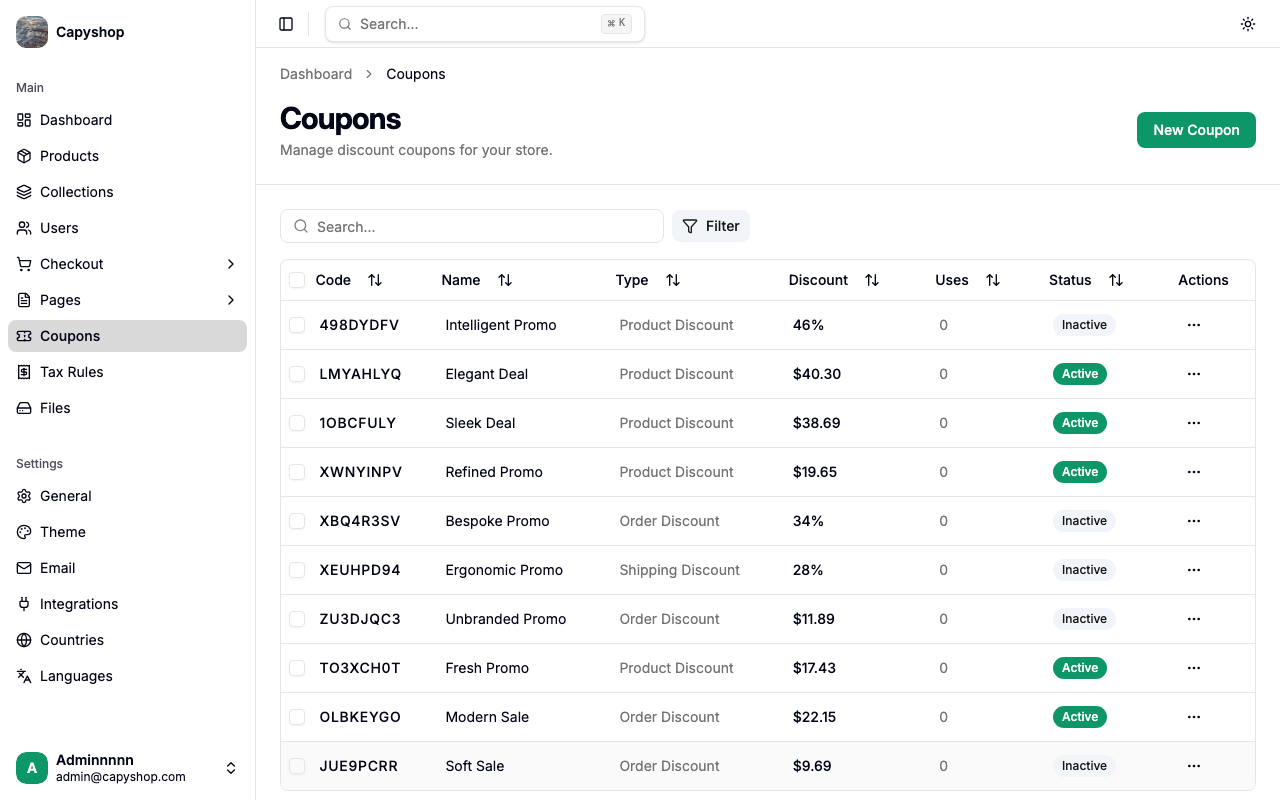
Open Coupons in the admin sidebar to see the full list. The table displays each coupon's code, name, type, discount value, number of uses, status, and an actions menu.
| Column | Description |
|---|---|
| Code | The unique coupon code (click to edit) |
| Name | Display name for the coupon |
| Type | One of: Order Discount, Product Discount, or Shipping Discount |
| Discount | The discount value shown as a percentage (e.g., 46%) or fixed amount (e.g., $40.30) |
| Uses | How many times the coupon has been used |
| Status | Active, Inactive, or Expired |
| Actions | Dropdown with Edit and Delete options |
You can sort by clicking any column header, search by typing in the search bar, and filter by status (All, Active, Inactive, Expired) using the Filter button.
Bulk actions
Select multiple coupons using the checkboxes to reveal bulk action buttons:
- Activate — enable selected coupons
- Deactivate — disable selected coupons
- Delete — permanently remove selected coupons (with confirmation)
Creating a coupon
Click New Coupon on the list page to open the creation form.
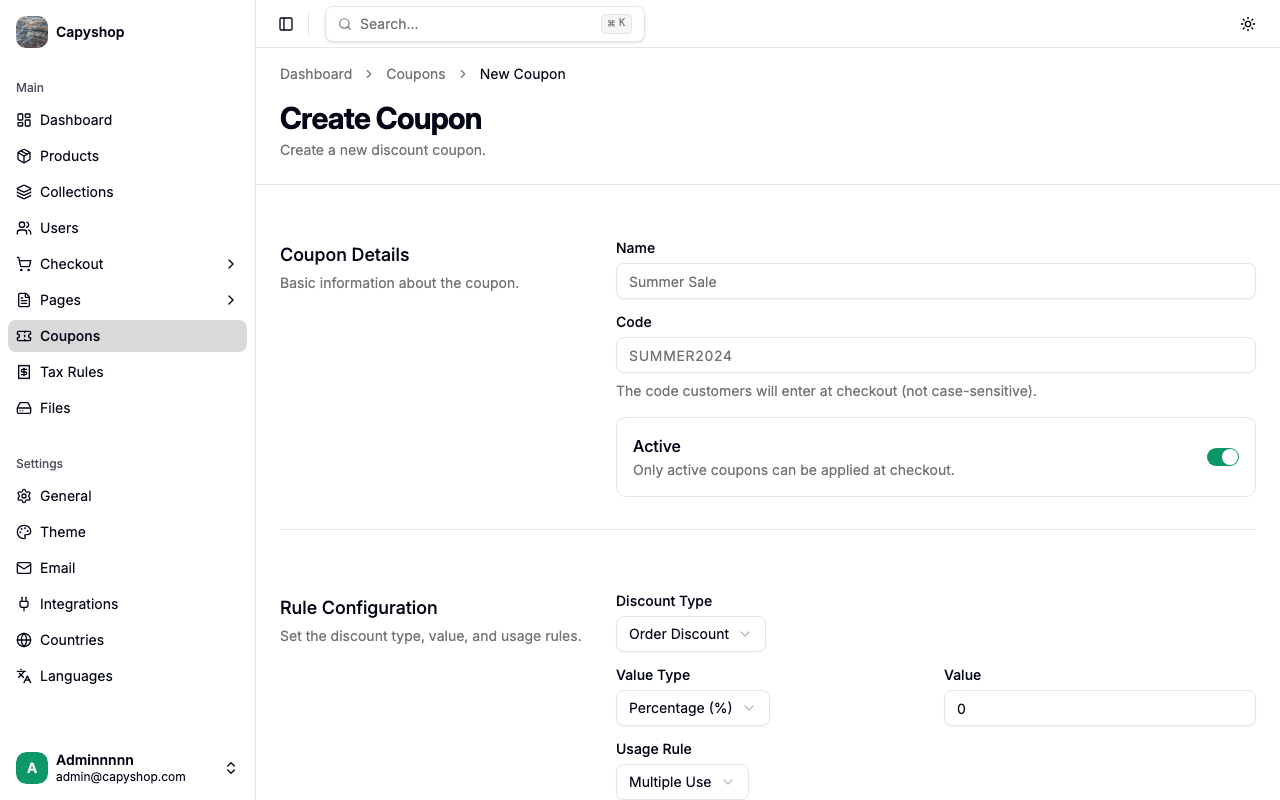
Coupon details
| Field | Required | Description |
|---|---|---|
| Name | Yes | A display name for the coupon (e.g., "Summer Sale") |
| Code | Yes | The code customers will enter at checkout. Automatically converted to uppercase. Not case-sensitive when applied |
| Active | No | Toggle to enable or disable the coupon. Only active coupons can be applied at checkout |
Rule configuration
| Field | Required | Description |
|---|---|---|
| Discount Type | Yes | Choose between Order Discount, Product Discount, or Shipping Discount |
| Value Type | Yes | Choose between Percentage (%) or Fixed Amount |
| Value | Yes | The discount value (e.g., 20 for 20%, or 10.00 for $10.00 off) |
| Product | Conditional | Only shown when Discount Type is Product Discount. Select the specific product that must be in the cart |
| Usage Rule | Yes | Multiple Use (unlimited), Single Per Customer (once per customer), or Single Overall (one use total) |
| Minimum Order Amount | No | The minimum order subtotal required to apply this coupon |
| Expiration Date | No | The coupon will automatically become invalid after this date |
| Target Countries | No | Restrict this coupon to customers shipping to specific countries. If left empty, the coupon is valid for all countries |
Editing a coupon
Click any coupon code in the list (or choose Edit from the actions dropdown) to open the edit form. It contains the same fields as the creation form, pre-populated with the current data.
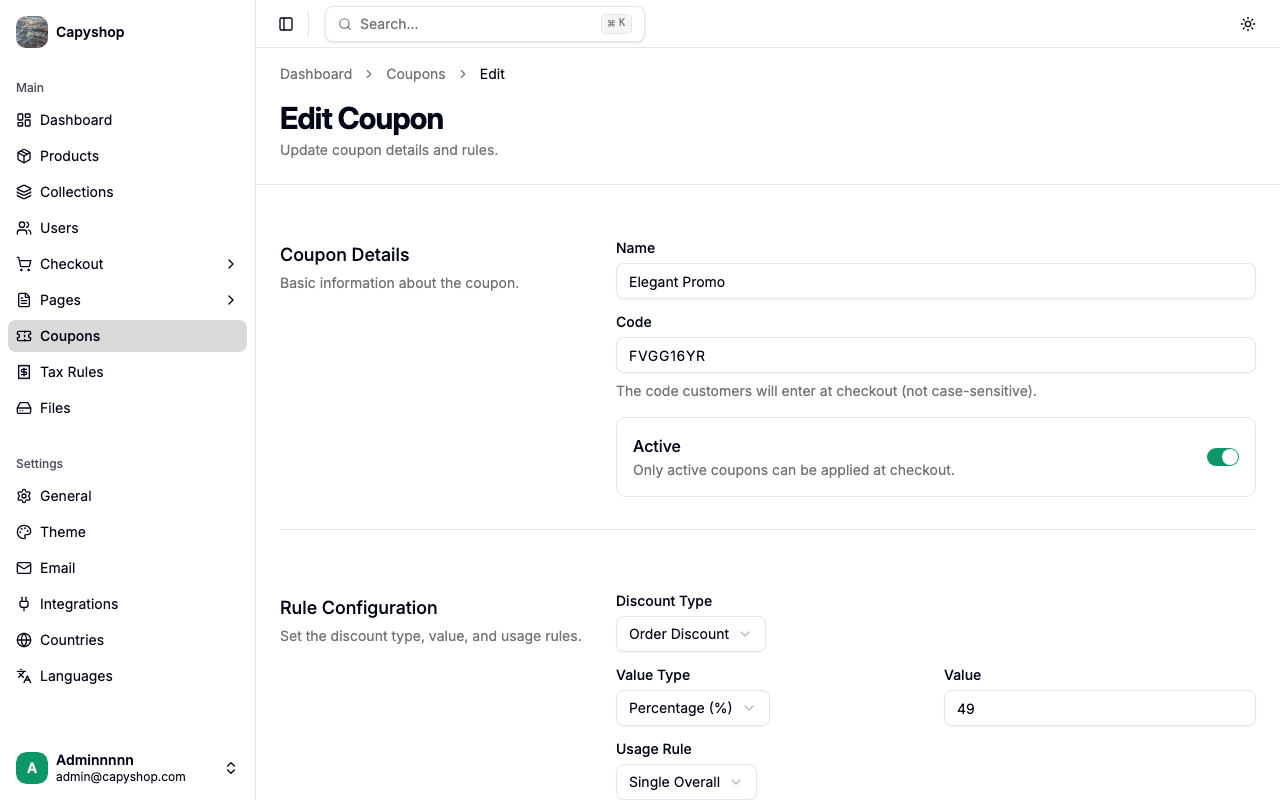
Click Save Changes when you are done.
Deleting a coupon
To delete a coupon, click the actions dropdown on the row and select Delete. A confirmation dialog will appear before the coupon is permanently removed.
How coupons work at checkout
During checkout, customers can enter a coupon code in the Coupon Code field on the order summary panel.
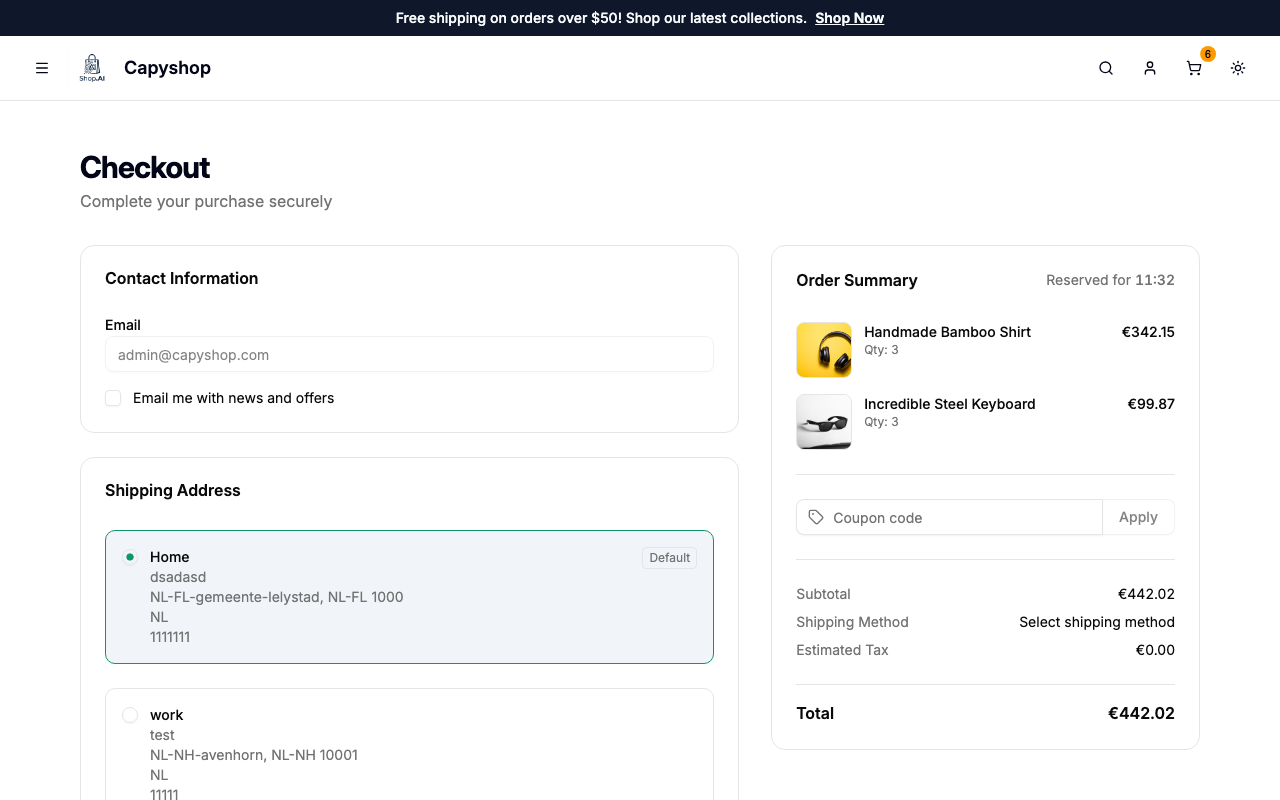
Validation
When a customer enters a coupon code, the system checks the following before applying it:
- The coupon must be active
- The coupon must not be expired
- The order must meet the minimum order amount (if set)
- The customer's shipping country must match the coupon's target countries (if set)
- For Product Discount coupons, the specified product must be in the cart
- The coupon must pass the usage rule check:
- Multiple Use — always passes
- Single Per Customer — the customer must not have used this coupon before
- Single Overall — the coupon must not have been used by anyone
If any check fails, the customer sees an error message explaining why the coupon cannot be applied.
How discounts are calculated
| Discount Type | Percentage | Fixed Amount |
|---|---|---|
| Order Discount | Subtotal x (value / 100) | Flat amount off the subtotal (capped at subtotal) |
| Product Discount | Product total x (value / 100) | Flat amount off the product total (capped at product total) |
| Shipping Discount | Shipping cost x (value / 100) | Flat amount off shipping (capped at shipping cost) |
Important: Only one coupon can be applied per order. Customers can remove a coupon and apply a different one before completing their order.
Tip: Coupon codes are not case-sensitive. A customer can enter "summer2024" or "SUMMER2024" and both will work for the code
SUMMER2024.