
Appearance
Custom Scripts
Custom scripts let you inject third-party tracking and analytics code into your storefront. Common uses include Google Analytics, Meta Pixel, live chat widgets, and conversion tracking. Scripts are only loaded after a customer accepts the cookie consent banner, ensuring GDPR compliance out of the box.
Browsing scripts
Open Scripts in the admin sidebar to see all your custom scripts. The table shows each script's name, status, load position, and creation date.
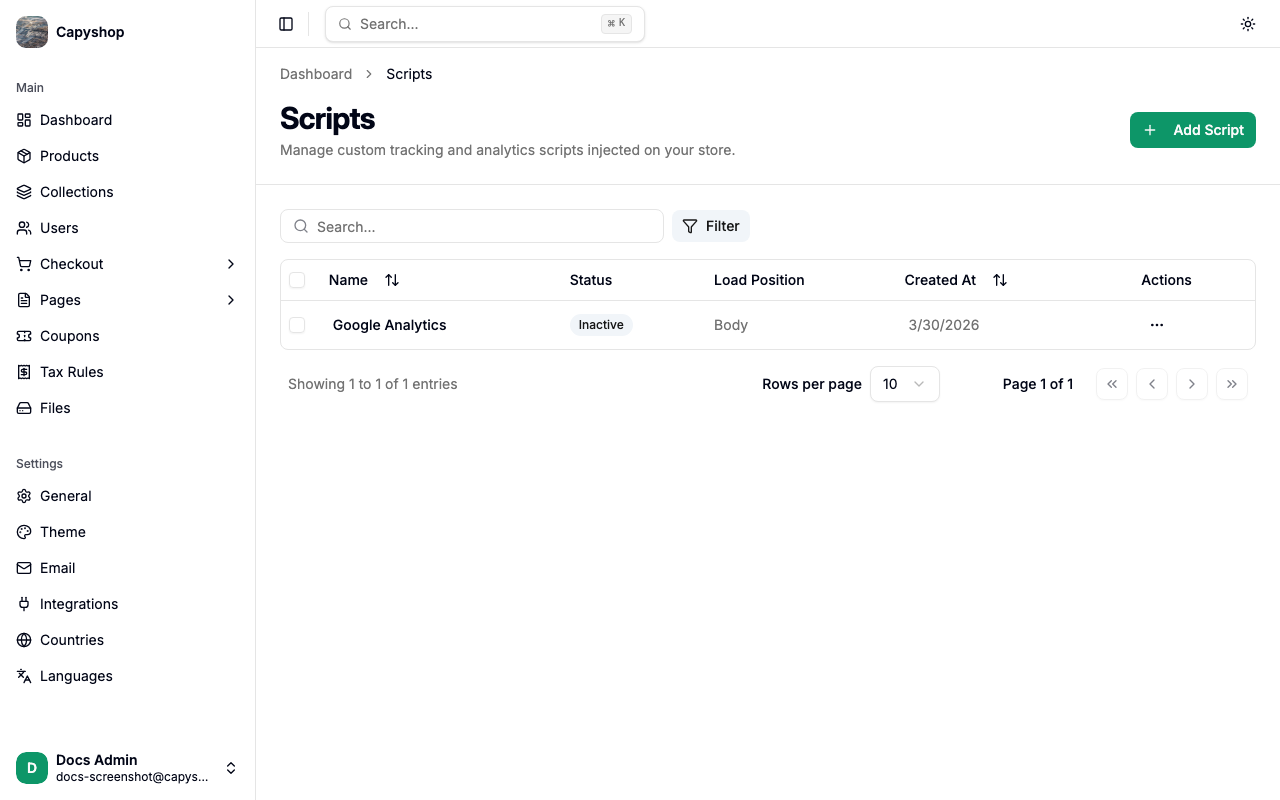
| Column | Description |
|---|---|
| Name | Descriptive label you gave the script |
| Status | Active (injected on the storefront) or Inactive. Active scripts also show a "Requires cookie consent" badge |
| Load Position | Where the script is injected: Head or Body |
| Created At | Date the script was added |
You can search by script name, sort by clicking column headers, and filter by status using the filter dropdown.
Creating a script
Click Add Script in the top-right corner to open the creation form.
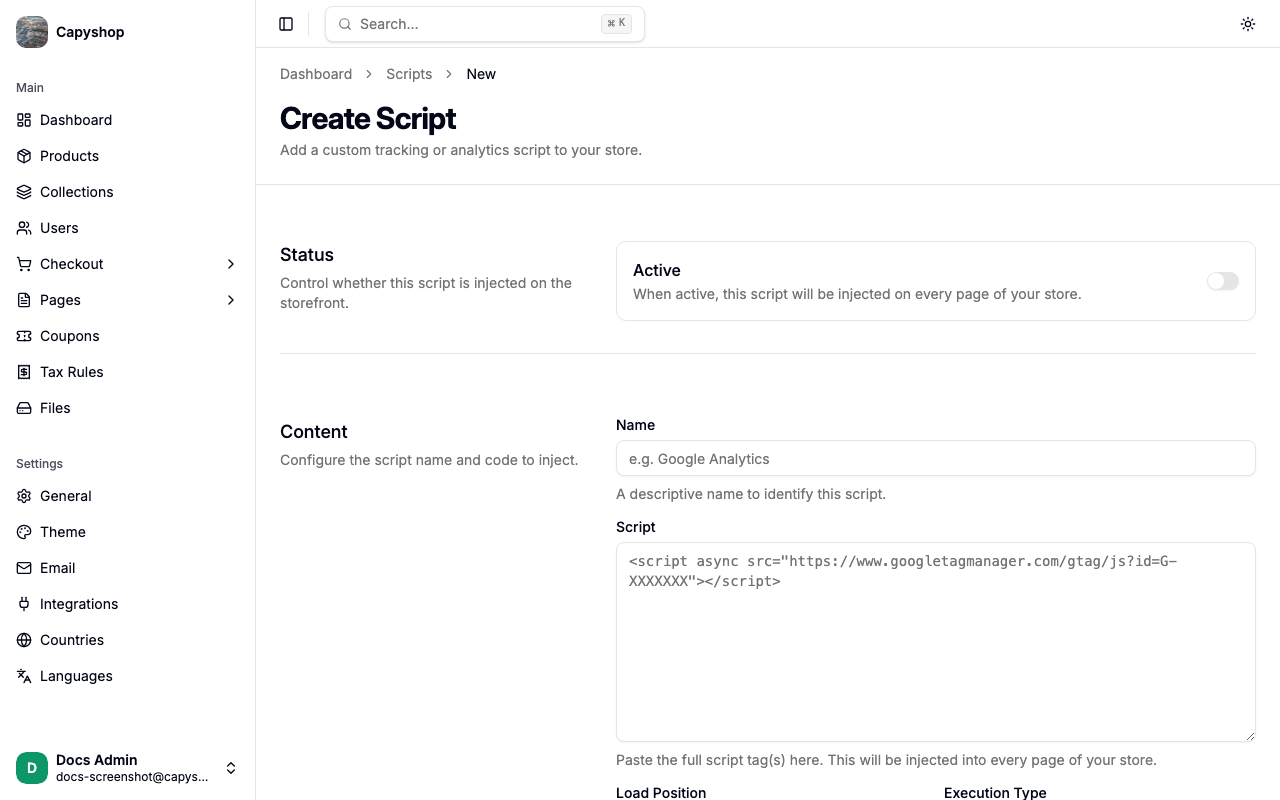
Status
| Field | Description |
|---|---|
| Active | Toggle to control whether this script is injected on the storefront. When active, it runs on every page after cookie consent is accepted |
Content
| Field | Description |
|---|---|
| Name | A descriptive label to identify the script (e.g. "Google Analytics") |
| Script | The full script tag(s) to inject. Paste the code exactly as provided by the third-party service |
| Load Position | Head places the script in the HTML <head> — use this for scripts that must load before the page renders (e.g. analytics). Body places it at the end of the <body> — better for widgets and non-critical scripts |
| Execution Type | Async (default) loads the script without blocking the page. Sync loads it before continuing to render the page |
Important: Selecting Sync with Head load position will display a warning. Synchronous scripts in the head can block page rendering and negatively impact load times. Use this combination only when the third-party provider specifically requires it.
Click Create Script to save.
Editing a script
Click any script name in the list to open the edit form. The fields are identical to the creation form. Click Save to apply your changes.
Bulk operations
Select multiple scripts using the checkboxes, then use the toolbar to:
- Activate — inject the selected scripts on the storefront
- Deactivate — remove the selected scripts from the storefront
- Delete — permanently remove the selected scripts
All bulk actions ask for confirmation before proceeding.
How scripts appear on the storefront
Custom scripts are not injected immediately when a customer visits your store. The platform includes a built-in cookie consent banner that appears at the bottom of the page for first-time visitors.
- If the customer clicks Accept, all active scripts are injected according to their load position (head or body) and execution type (async or sync)
- If the customer clicks Decline, no scripts are injected
- The customer's choice is remembered in their browser for future visits
This means analytics and tracking only activate after explicit consent, keeping your store compliant with GDPR and similar privacy regulations.
Tip: You do not need to add your own cookie consent logic inside the script code. The platform handles consent gating automatically — just paste the raw script tags provided by your analytics or tracking service.