
Appearance
FAQ
The FAQ feature lets you create and manage frequently asked questions that are displayed on a dedicated page in your storefront. Customers can browse questions by category, search for answers, and find contact information — all without needing to reach out to support.
Browsing FAQ entries
Open FAQ in the admin sidebar to see all your questions. The table shows each entry's question, category, and creation date.
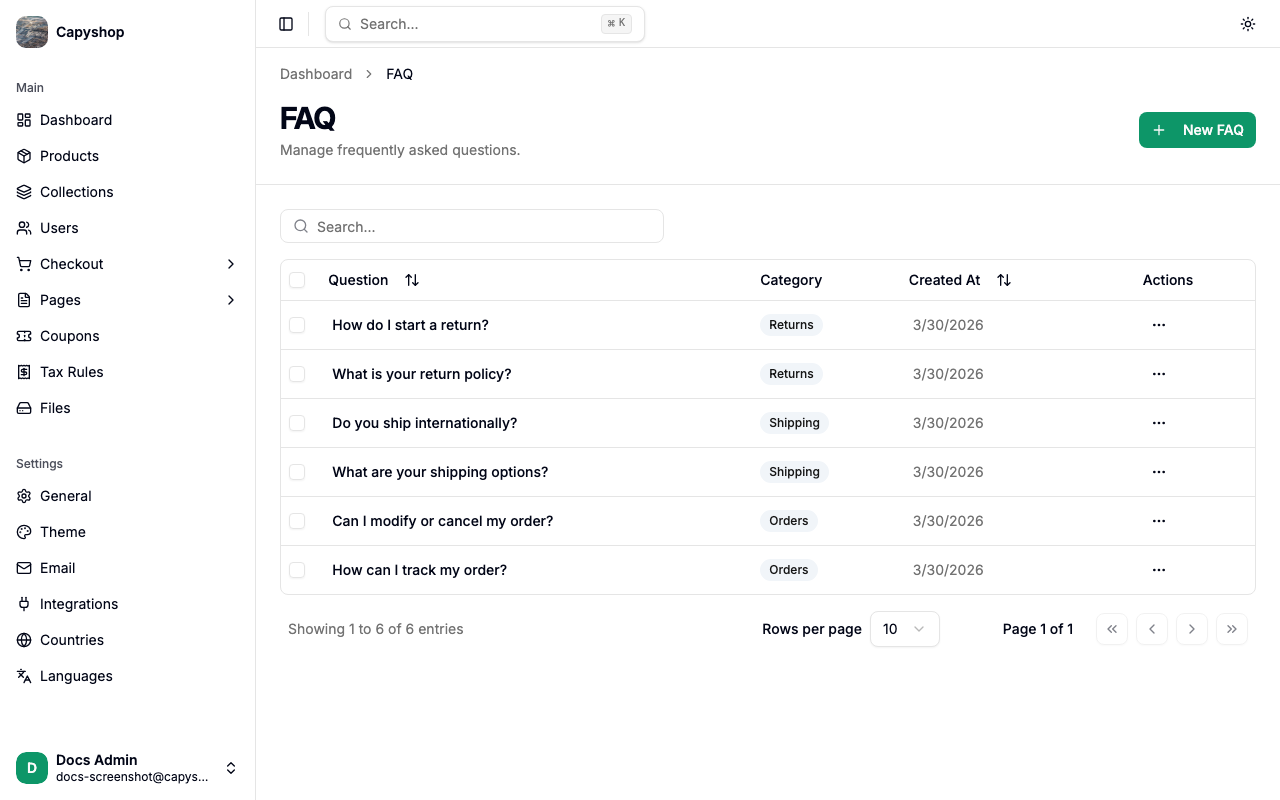
| Column | Description |
|---|---|
| Question | The question text |
| Category | The category the question belongs to (e.g. Orders, Shipping, Returns) |
| Created At | Date the entry was created |
You can search by question text, sort by clicking column headers, and delete entries individually or in bulk using the checkboxes.
Creating a FAQ entry
Click New FAQ in the top-right corner to open the creation form.
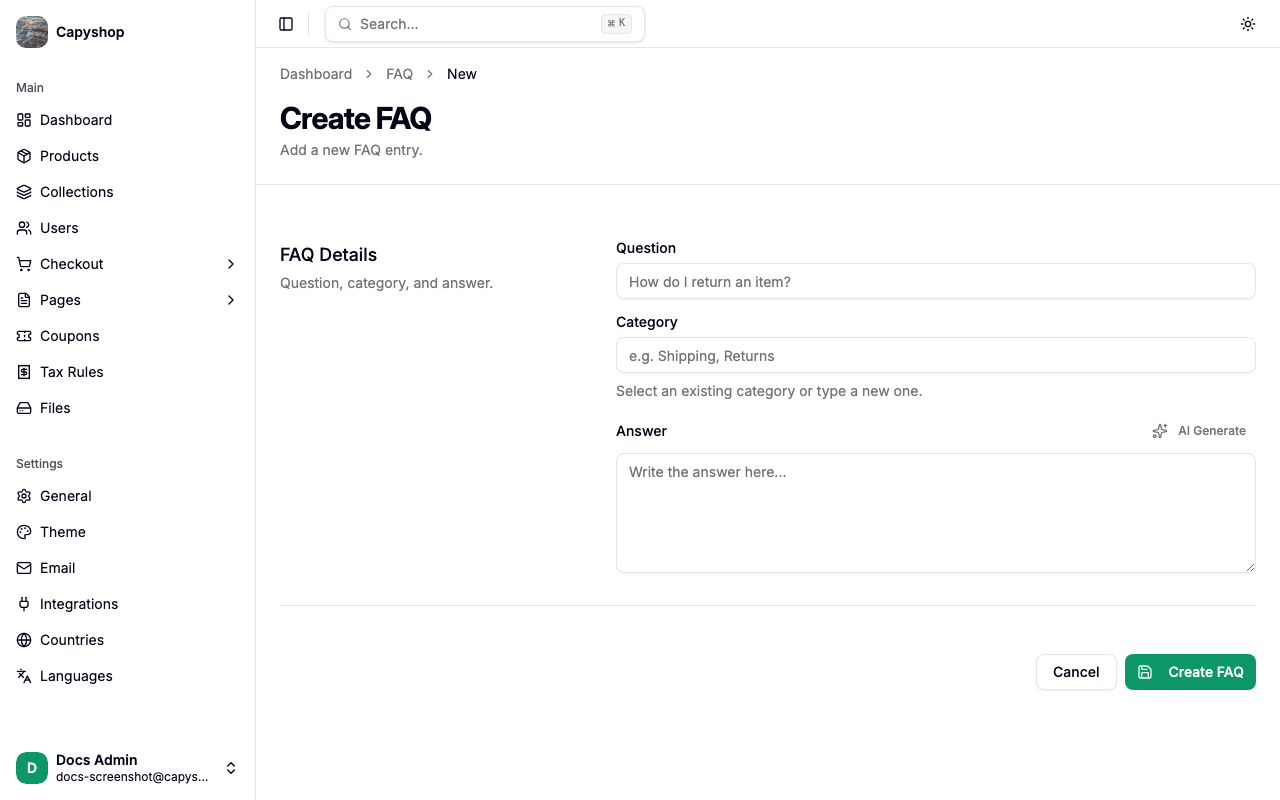
| Field | Description |
|---|---|
| Question | The question as your customers would ask it (e.g. "How do I return an item?") |
| Category | A grouping label. Select an existing category from the dropdown or type a new one. Categories are used to organize questions on the storefront |
| Answer | The full answer to the question. Write clear, helpful content that addresses the question completely |
Tip: If your store has AI features enabled, you can click the sparkle icon next to the Answer field to generate a draft answer automatically. Describe the topic or policy and the AI will write a helpful response that you can review and edit before saving.
Click Create FAQ to save.
Editing a FAQ entry
Click any question in the list to open the edit form. The fields are identical to the creation form. Click Save to apply your changes.
How FAQ appears on the storefront
Customers access the FAQ page by navigating to /faq on your store. The page includes a search bar, questions grouped by category, and an optional contact section.
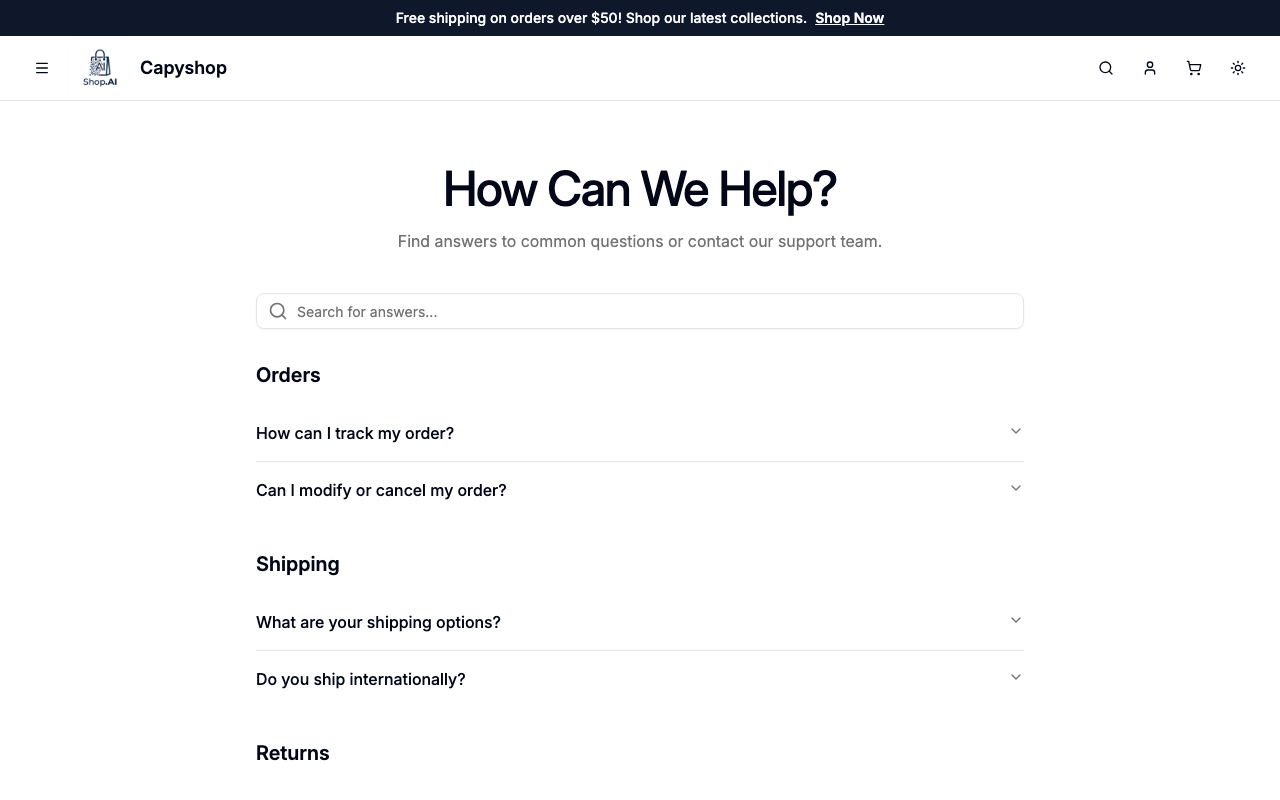
Search
A search bar at the top lets customers filter questions instantly. The search matches against question text, answer content, and category names — so customers can find answers even if they don't know the exact question.
Category grouping
Questions are organized under bold category headings (e.g. Orders, Shipping, Returns). Each question is displayed as an expandable accordion — customers click a question to reveal the answer.
Contact section
Below all the FAQ entries, a "Still need help?" section is displayed with contact buttons for your store's email and phone number (if configured in store settings). This gives customers a clear path to reach support when the FAQ doesn't cover their question.
SEO
The FAQ page automatically generates JSON-LD structured data for search engines. This can help your FAQ answers appear as rich results in Google searches, improving visibility for your store.
Tip: A markdown version of the FAQ page is also available at
/faq.md. This machine-readable format makes it easy for AI tools and search crawlers to parse your FAQ content.