
Appearance
Shipping Options
Shipping options define how orders are delivered to customers. Each option has a price, a target country, and optional location restrictions (states and cities). You can also configure delivery rules to restrict deliveries to specific days of the week with a minimum lead time. Everything you set up here is reflected in the storefront checkout.
Browsing your shipping options
Open Shipping in the admin sidebar (under Checkout) to see the full list. The table shows each option's name, price, country, status, and creation date.
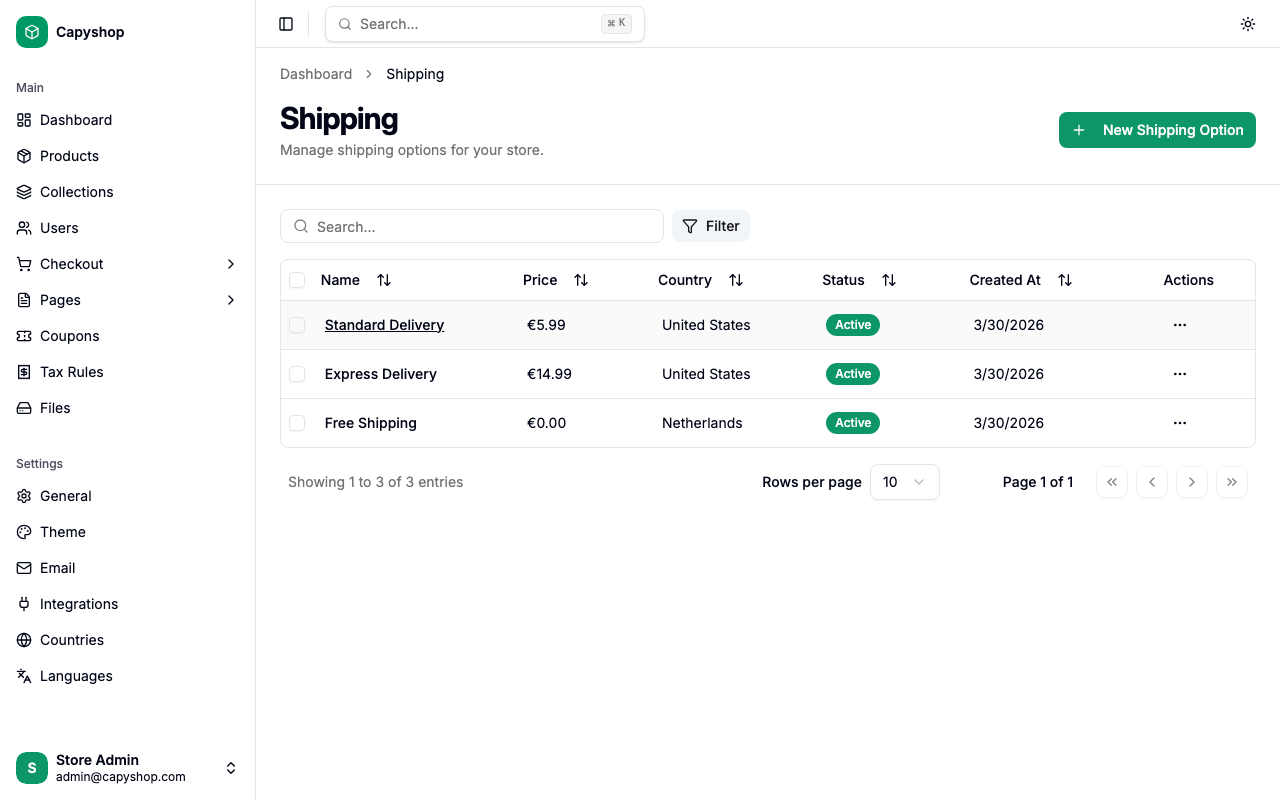
| Column | Description |
|---|---|
| Name | Shipping option name (click to edit) |
| Price | Shipping cost in your store currency |
| Country | The country this option serves |
| Status | Active (available at checkout) or Inactive |
| Created At | Date the option was created |
| Actions | Dropdown with Edit and Delete options |
You can sort by clicking any column header, search by typing in the search bar, and filter by country using the Filter button.
Creating a shipping option
Click New Shipping Option on the list page to open the creation form. The form is organized into three sections.
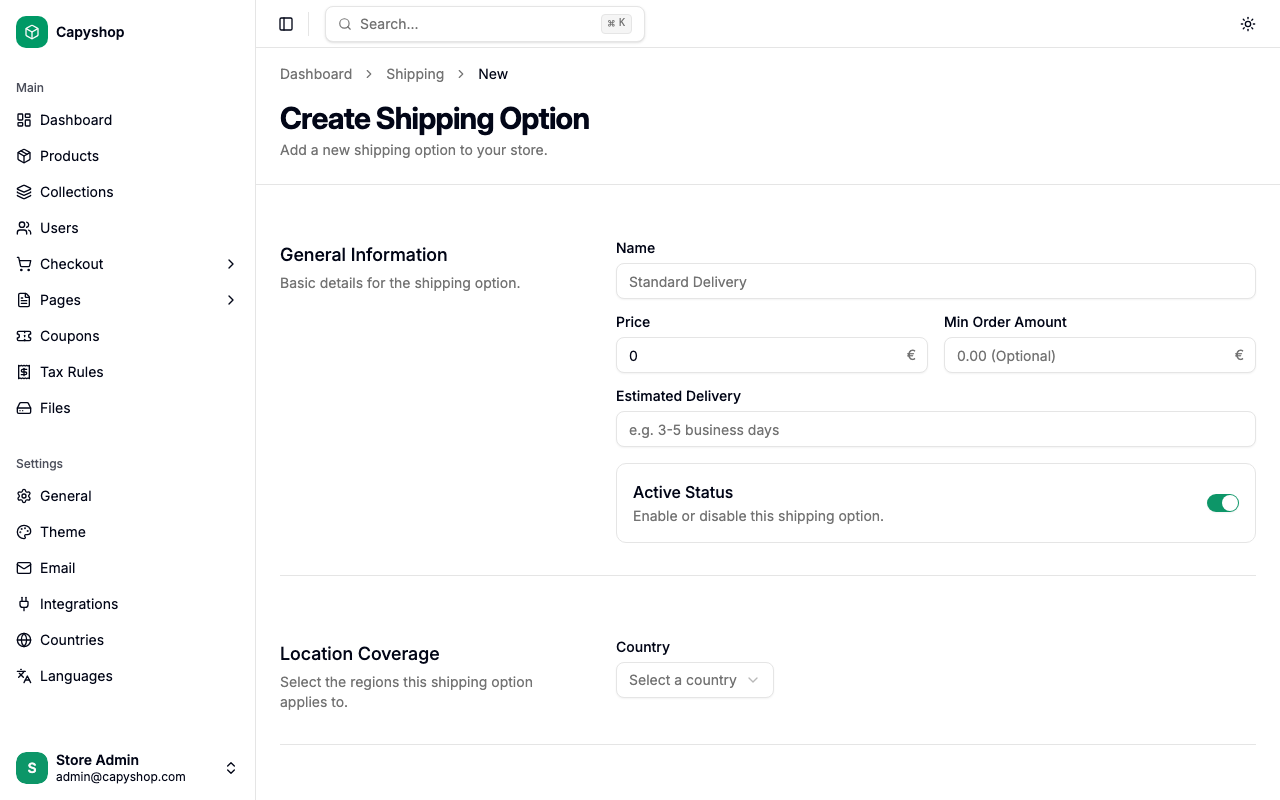
General information
| Field | Required | Description |
|---|---|---|
| Name | Yes | The name shown to customers at checkout (e.g., "Standard Delivery", "Express Shipping") |
| Price | Yes | Shipping cost. Set to 0 for free shipping |
| Min Order Amount | No | Minimum order amount required to use this option. The threshold is compared against subtotal + tax minus any merchandise discount, matching the customer's order summary (shipping-only coupons don't count toward the discount). Customers below the threshold see the option disabled. |
| Transit Time (business days) | No | Estimated transit time in whole business days (e.g., 3). Shown to customers at checkout and used for Google structured data |
| Active Status | No | Toggle to enable or disable this option at checkout. Active by default |
Location coverage
| Field | Required | Description |
|---|---|---|
| Country | Yes | The country this shipping option is available in. Each option serves one country |
| States | No | Restrict to specific states within the country. If no states are selected, all states are included |
| Cities | No | Restrict to specific cities. If no cities are selected, all cities within the selected states are included |
Tip: Location fields are hierarchical — selecting a country loads the available states, and selecting states loads the available cities. Leave states and cities empty to make the option available across the entire country.
Delivery rules
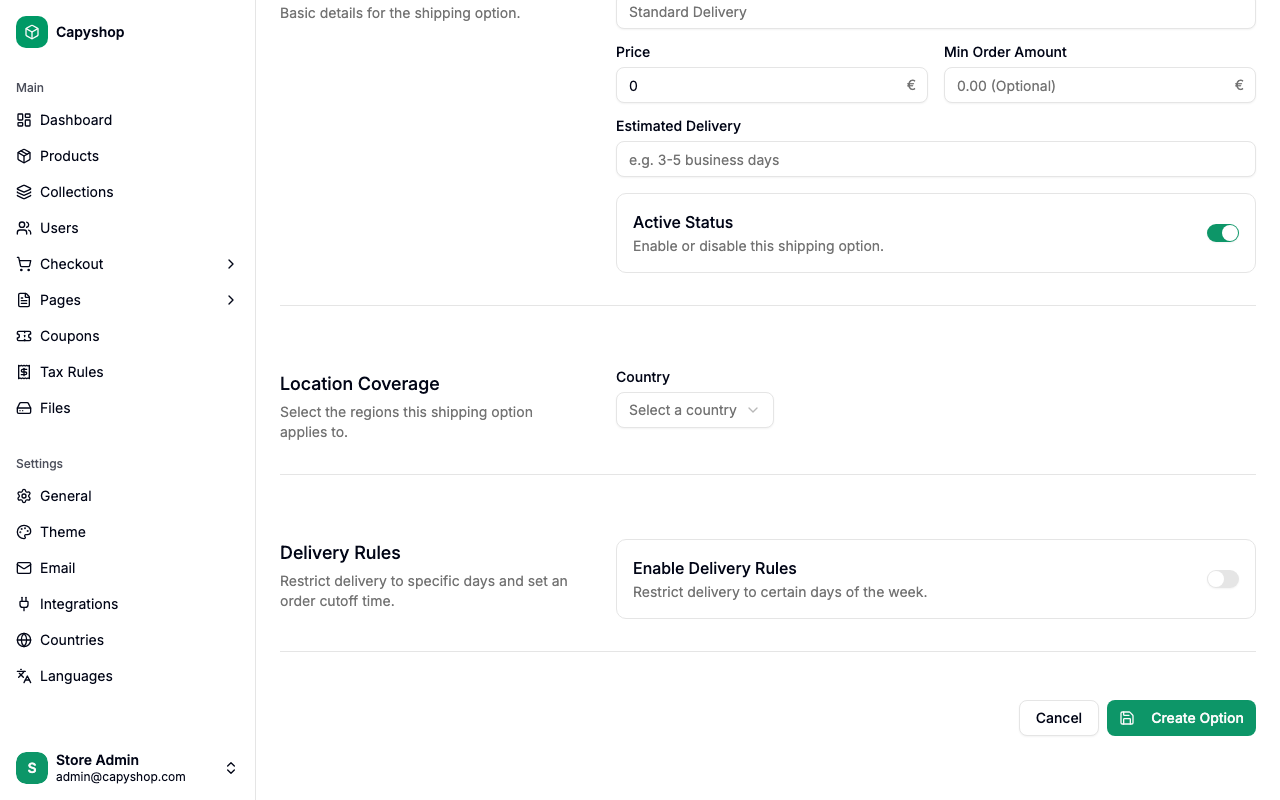
Delivery rules let you restrict deliveries to specific days of the week and set a minimum lead time. They are disabled by default.
| Field | Required | Description |
|---|---|---|
| Enable Delivery Rules | No | Toggle to enable day-of-week and lead-time restrictions |
| Delivery Days | Yes (when enabled) | Select which days of the week deliveries are accepted (e.g., Monday through Friday) |
| Minimum Lead Time (hours) | No | Minimum hours between order placement and delivery. For example, 96 hours means an order placed on Friday cannot be delivered before Tuesday |
Important: When delivery rules are enabled, customers must pick a delivery date from a calendar during checkout. Only dates that match the allowed weekdays and satisfy the lead time will be selectable.
Editing a shipping option
Click any option name in the list (or choose Edit from the actions dropdown) to open the edit form. It contains the same fields as the creation form, pre-populated with the current data.
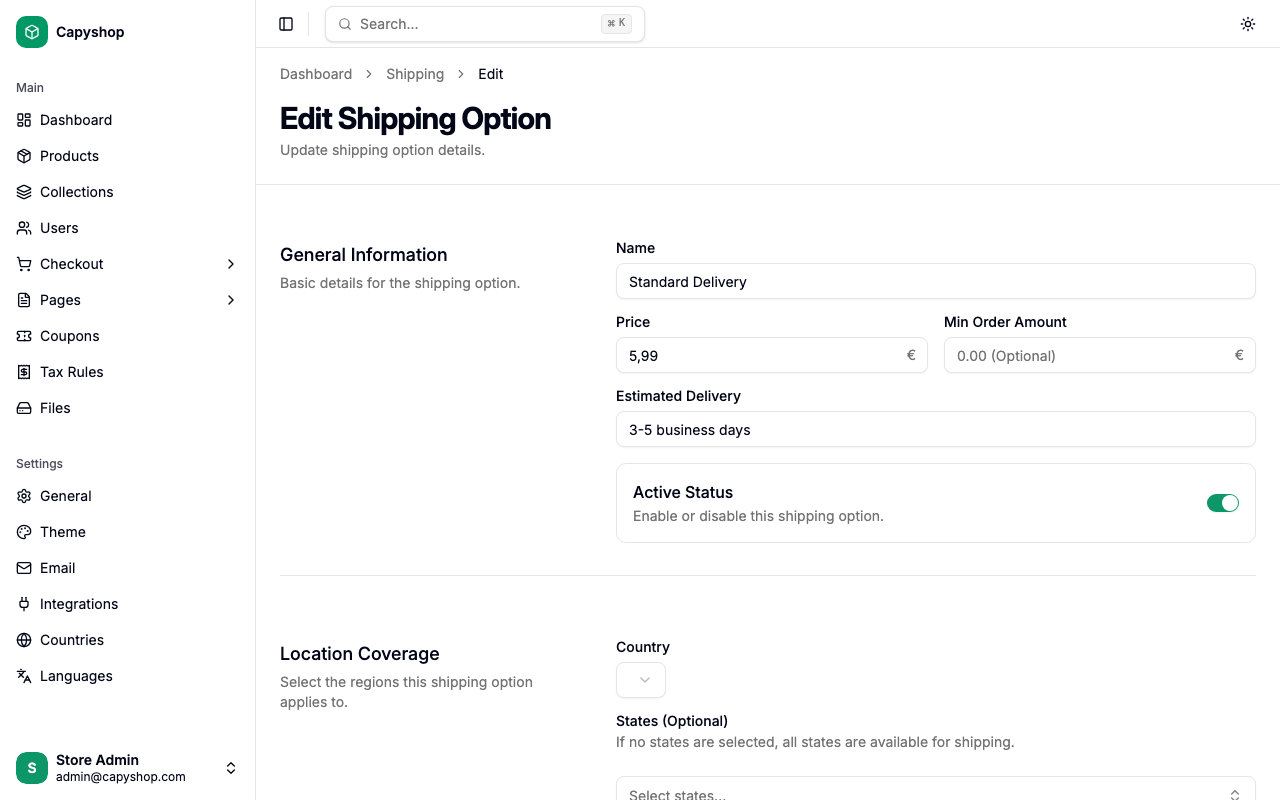
Click Save Changes when you are done.
Deleting a shipping option
To delete a shipping option, click the actions dropdown on the row and select Delete. A confirmation dialog will appear before the option is permanently removed.
How shipping options appear on the storefront
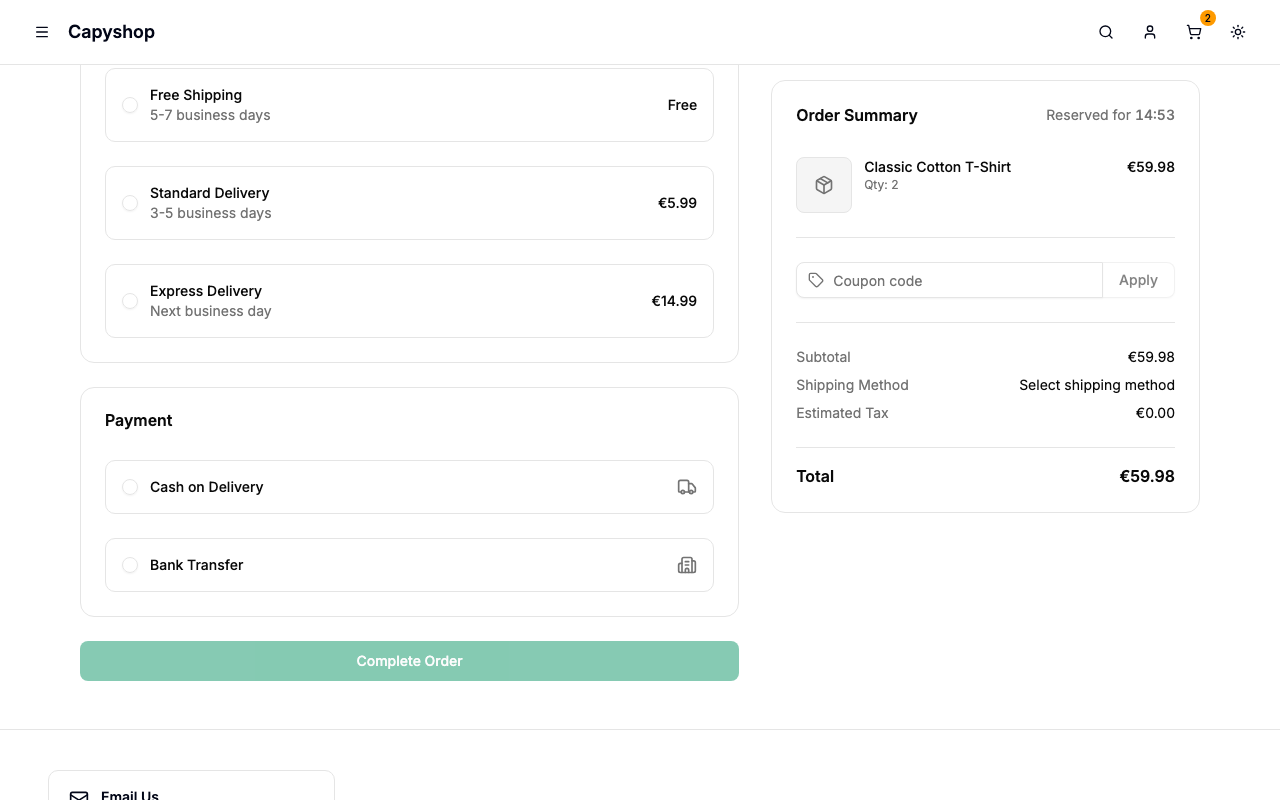
During checkout, after a customer selects their shipping address, the available shipping options are displayed as selectable cards in the Shipping section.
| Admin setting | Storefront behavior |
|---|---|
| Name | Displayed as the card label |
| Price | Shown on the right side of the card. Displayed as Free when the price is 0 |
| Transit Time | Shown below the name as a "X business days" label (only when delivery rules are disabled) |
| Min Order Amount | If the order amount (subtotal + tax − merchandise discount) is below the minimum, the option is shown but disabled with a "Minimum order of X required" message |
| Active Status | Only active options are shown |
| Country, States, Cities | Only options matching the customer's shipping address are displayed |
Delivery date selection
When a shipping option has delivery rules enabled, a calendar appears after the customer selects that option. The calendar automatically disables:
- Past dates
- Days of the week not included in the Delivery Days setting
- Dates that fall within the Minimum Lead Time window
The customer must select a valid delivery date before proceeding to the payment step.
Free shipping
To offer free shipping, create a shipping option with a price of 0. You can combine this with a minimum order amount to offer free shipping on orders above a certain value (e.g., "Free shipping on orders over $50").