
Appearance
Users management
Users management lets you view, edit, and control every customer and staff account in your store. From the admin panel you can search users, change roles, ban or unban accounts, and bulk-import new users from a CSV file.
Browsing your users
Open Users in the admin sidebar to see the full user list. The table displays each user's name, email, role, and registration date at a glance.
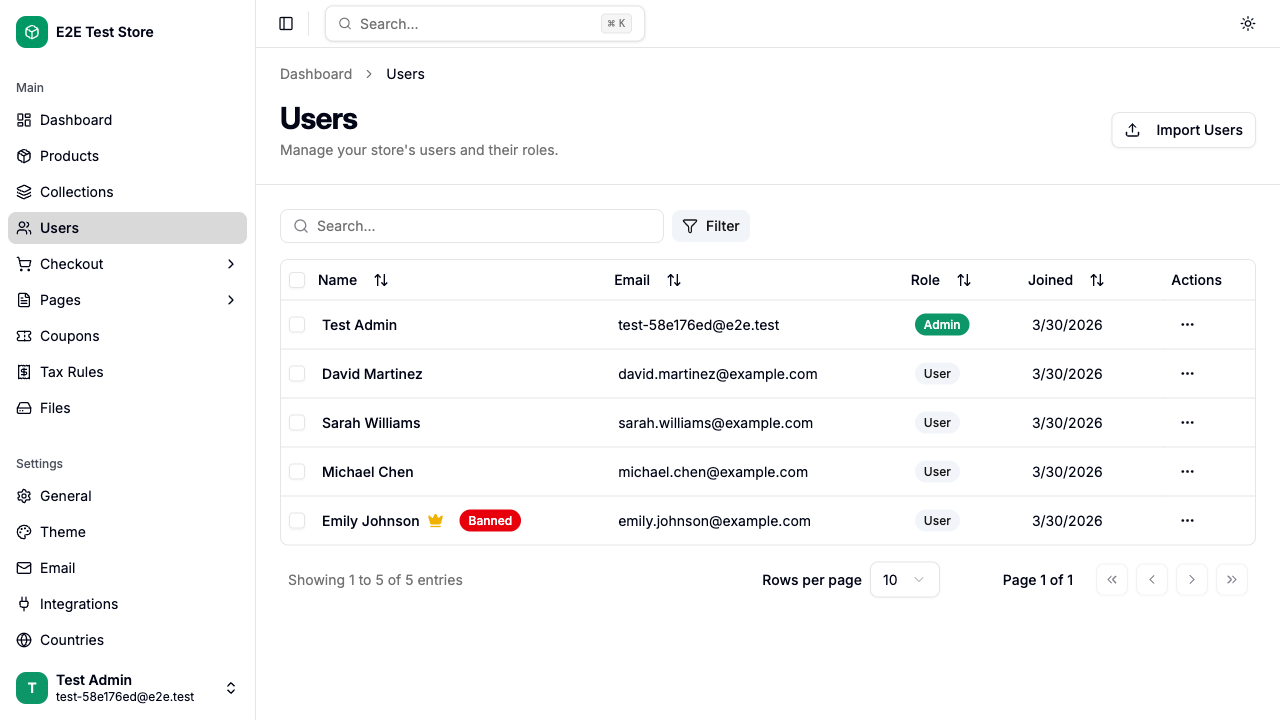
| Column | Description |
|---|---|
| Name | User's full name. A gold crown icon marks the store owner (first user). A red Banned badge appears if the account is banned. Click to edit. |
| User's email address | |
| Role | Admin (primary badge) or User (secondary badge) |
| Joined | Date the account was created |
You can sort by clicking any column header, and search by typing in the search bar at the top. Use the Filter button to narrow results by role (All / Admin / User) or status (All / Active / Banned).
Bulk actions
Select one or more users using the checkboxes on the left, then use the bulk actions bar that appears at the bottom:
- Unban — restore access for all selected users
- Ban — revoke access for all selected users (a confirmation dialog will appear)
Important: If any selected user is an admin, both bulk actions are blocked. Deselect admin users to continue. The store owner (first user) and admins are automatically excluded from bulk ban operations.
Row actions
Click the three-dot menu on any row to see the available actions for that user:
| Action | When available | What it does |
|---|---|---|
| Edit | Always | Opens the user edit page |
| Promote to Admin | User is not an admin | Grants admin dashboard access (confirmation required) |
| Demote to User | User is an admin but not the store owner | Revokes admin access immediately (confirmation required) |
| Ban User | User is not admin, not banned, and not the store owner | Blocks sign-in and purchases. All active sessions are deleted. |
| Unban User | User is banned and not an admin | Restores full access to the store |
Editing a user
Click any user name in the list (or the Edit action in the row menu) to open the edit page.
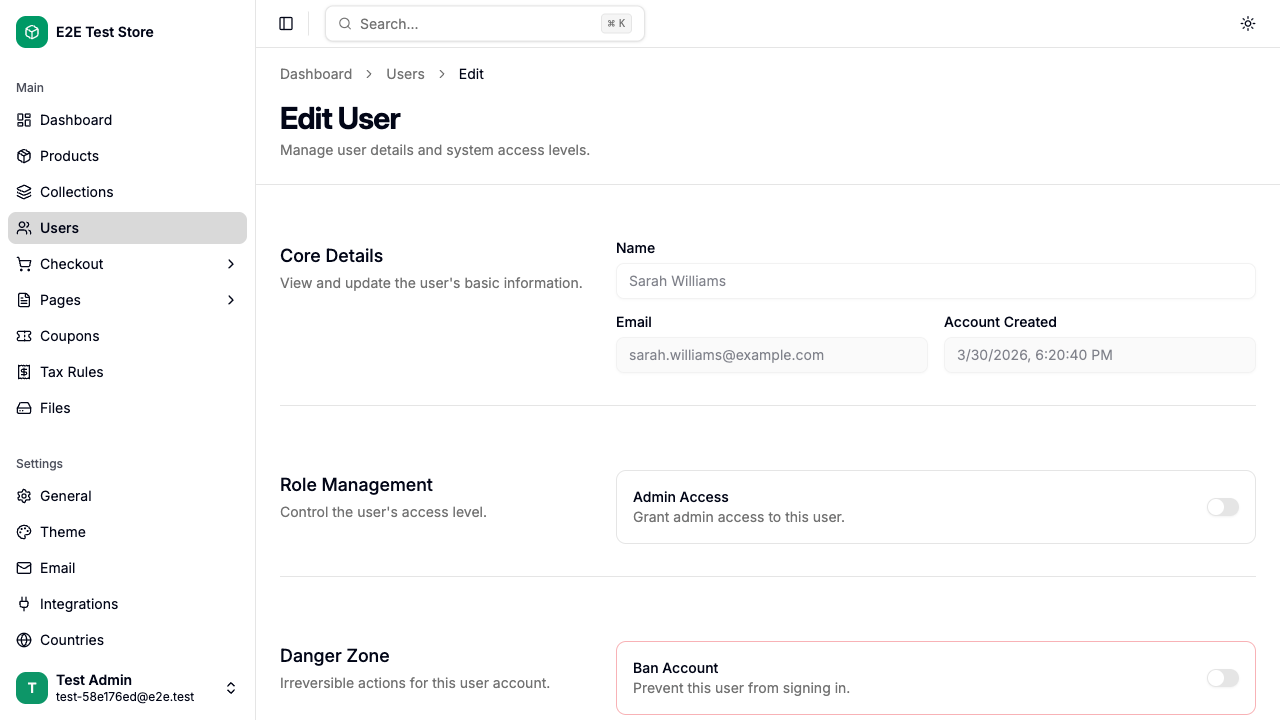
Core details
These fields are read-only:
| Field | Description |
|---|---|
| Name | User's full name |
| Account email address (grayed out) | |
| Account Created | Registration date and time |
Role management
Toggle Admin Access to promote or demote the user. Admins can access the store dashboard and manage products, orders, and settings.
Tip: The store owner (marked with a gold crown) cannot be demoted. This toggle is disabled for the first user account.
Danger zone
Toggle Ban Account to block the user from signing in or making purchases. When a user is banned, all their active sessions are immediately deleted.
Important: You cannot ban admin users or the store owner. Demote an admin to a regular user first if you need to ban them.
Consent info
This section displays two read-only indicators:
- Terms of Service Consent — shows the accepted ToS version and date, or "Not accepted" with a gray indicator
- Newsletter Subscription — shows a green Subscribed badge or a gray Not subscribed badge
Addresses
All saved shipping addresses for the user are listed here as read-only cards. Each card shows the address label, full address, phone number, and whether it is the default address.
Importing users
Click the Import Users button on the users list page to open the import dialog.
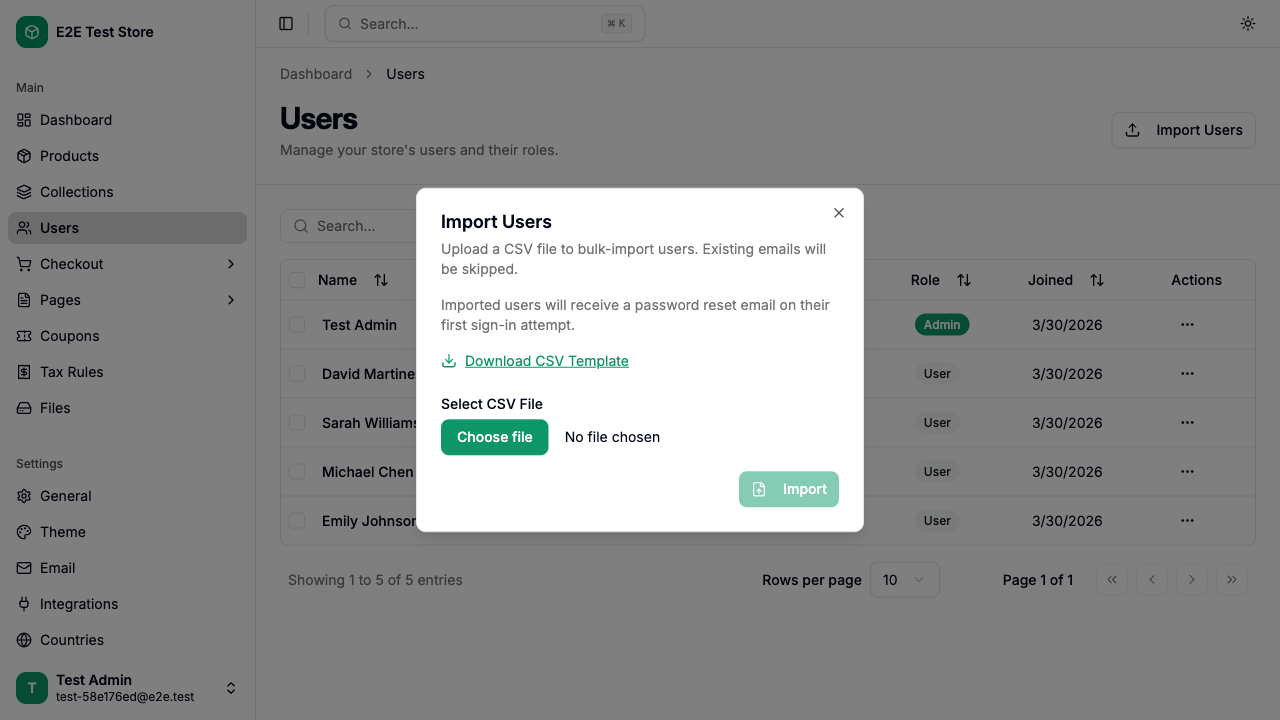
CSV format
Download the template by clicking the Download template link. The expected format is:
| Column | Required | Description |
|---|---|---|
| Yes | Must be a valid email address | |
| First Name | No | Combined with Last Name to form the display name |
| Last Name | No | If both names are empty, the email prefix is used |
| Accepts Email Marketing | No | yes, true, or 1 to subscribe; anything else is treated as no |
Import results
After uploading, the dialog shows a summary:
- Imported — number of new users created
- Skipped — users whose email already exists in the database
- Errors — rows that failed validation, with the row number and reason
Tip: Imported users are created with a random password and the force password reset flag enabled. They will be prompted to set their own password on first sign-in.
Exporting users
Click the Export Users button on the users list page to download the current list as a CSV file. The export respects active filters and search — only the rows you can see in the list are included.
The downloaded file uses the same column layout as the import template, so a CSV exported from one Capyshop store can be imported directly into another.
Account Deletion
Users can be deleted through two paths:
- Self-service: Users can delete their own account from the profile page (Danger Zone section). This requires password confirmation and anonymizes all order PII while retaining financial records for tax purposes.
- Admin deletion: Administrators can delete users from the admin user edit page. The store owner (first user) cannot be deleted.
When a user is deleted, the platform:
- Anonymizes all orders (removes name, email, addresses) while keeping order records for tax compliance
- Deletes analytics data, consent logs, product reviews, wishlist, and sessions
- Cascading delete handles addresses and accounts
Store owner protections
The first admin account — created during the onboarding process — is the store owner and has special protections:
- Cannot be demoted — the Admin Access toggle is permanently disabled for this account
- Cannot be banned — the Ban Account toggle is disabled, and bulk ban operations automatically skip this user
- Cannot be deleted — there is no delete user functionality in the admin panel
The store owner is identified by a gold crown icon next to their name in the users list and edit page.
GDPR & Marketing Consent
Important
Capyshop tracks whether a user has opted into marketing emails via the Newsletter Subscription field (subscribeToNews). However, Capyshop does not include a built-in email marketing system — there is no newsletter composer, campaign manager, or bulk email sender.
If you connect an external email marketing service to send newsletters, you are responsible for ensuring GDPR-compliant consent:
- Obtain explicit, freely-given consent (no pre-ticked boxes)
- Implement double opt-in where required (e.g., Germany)
- Provide a one-click unsubscribe link in every marketing email
- Maintain your own consent audit trail
The subscribeToNews flag in Capyshop serves as an informational record only.
Data Breaches
What Capyshop Does Not Do
Capyshop does not automatically detect, report, or notify users of data breaches. As the store operator (data controller), you are responsible for breach detection and notification under GDPR Articles 33 and 34.
What You Can Do
The admin panel allows you to:
- Export all users as CSV — you can use this list to contact affected users in case of a breach
- Use the export to communicate with your users via your own communication channels
Limitation of Liability
Capyshop is provided "as is" without warranties. You use the platform at your own risk. Capyshop is not responsible for data breaches, data loss, or compliance violations on self-hosted stores. As the store operator, you are the data controller and bear full responsibility for GDPR compliance.