
Appearance
Collections
Collections let you organize products into categories and sub-categories. From the admin panel you can create, edit, and nest collections — each with its own name, description, image, and hierarchy. Active collections appear in the storefront navigation, on a dedicated listing page, and in product breadcrumbs.
Browsing your collections
Open Collections in the admin sidebar to see the full collections list. The table displays each collection's name, slug, status, parent, product count, and creation date at a glance.
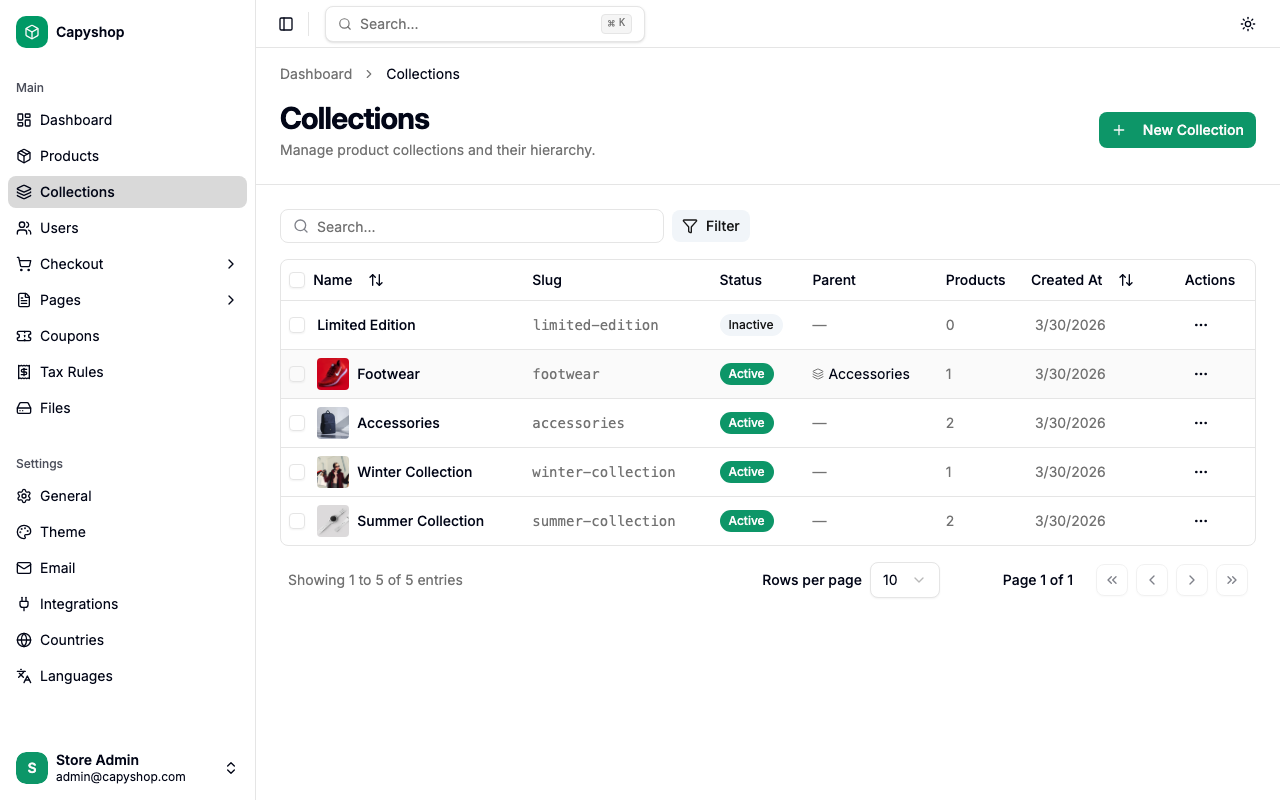
| Column | Description |
|---|---|
| Name | Collection name with thumbnail (click to edit) |
| Slug | URL path used on the storefront (links directly) |
| Status | Active (visible to customers) or Inactive |
| Parent | Parent collection name, or empty for top-level collections |
| Products | Number of products assigned to this collection |
| Created At | Date the collection was created |
You can sort by clicking any column header, and search by typing in the search bar at the top. Use the Filter button to narrow results by active or inactive status.
Bulk actions
Select one or more collections using the checkboxes on the left, then use the bulk actions bar that appears at the bottom:
- Activate — make selected collections visible on the storefront
- Deactivate — hide selected collections from customers
- Delete — permanently remove selected collections (a confirmation dialog will appear)
Creating a collection
Click New Collection on the collections list page to open the creation form.
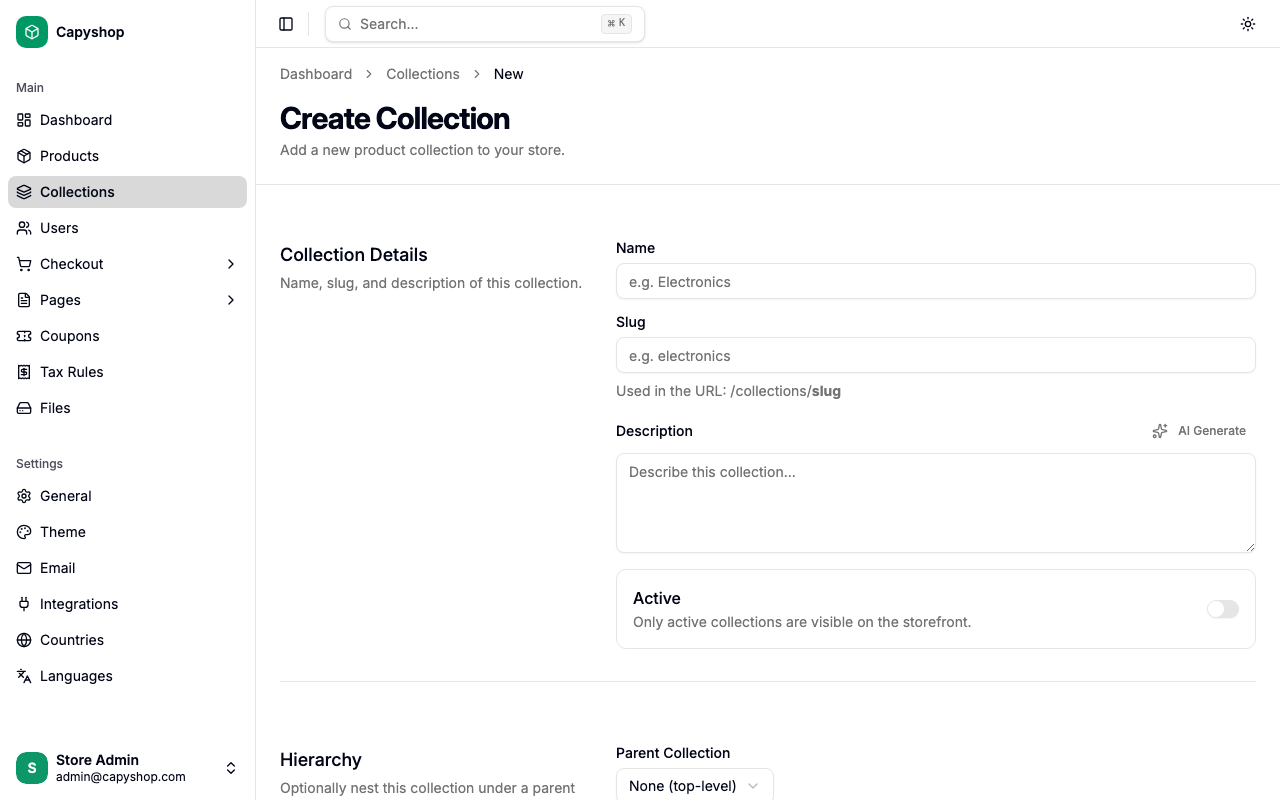
Collection details
| Field | Required | Description |
|---|---|---|
| Name | Yes | The collection name shown to customers. Automatically generates a URL slug. |
| Slug | Yes | URL-friendly identifier (lowercase with hyphens). Auto-generated from the name, but you can edit it. |
| Description | No | Text displayed on the collection page on the storefront. Can be generated with AI if enabled. |
| Active | No | Toggle to control storefront visibility. Collections are inactive by default. |
Tip: If your store has AI integrations enabled, you can click the AI generate button next to the Description field to automatically create a collection description from the name.
Hierarchy
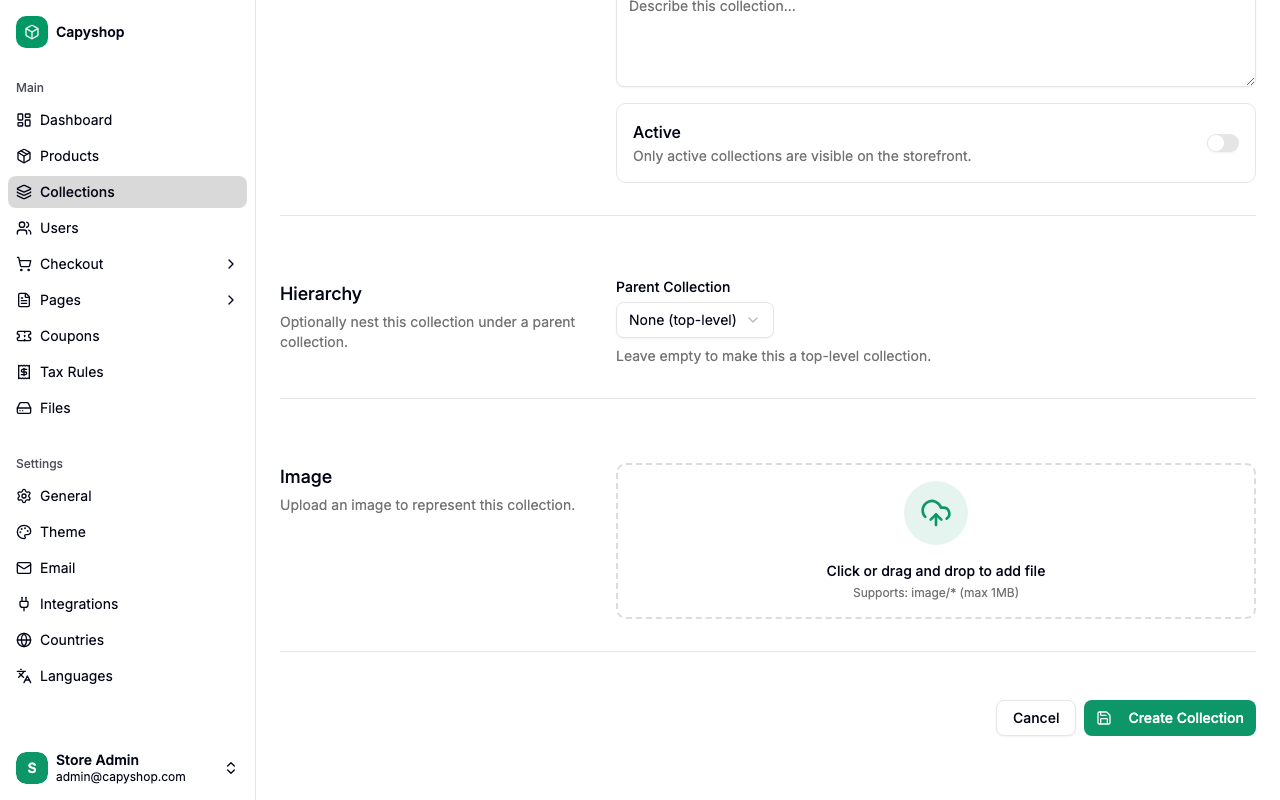
Use the Parent Collection dropdown to nest this collection under an existing one. Select None (top-level) to keep it at the root level. Sub-collections appear on their parent's storefront page and as indented items in the navigation menu.
Image
Upload a single image to represent the collection. This image is displayed on the collections listing page and as the hero banner on the individual collection page.
Editing a collection
Click any collection name in the list (or the edit action in the row menu) to open the edit form. It contains the same fields as the creation form, pre-populated with the collection's current data.
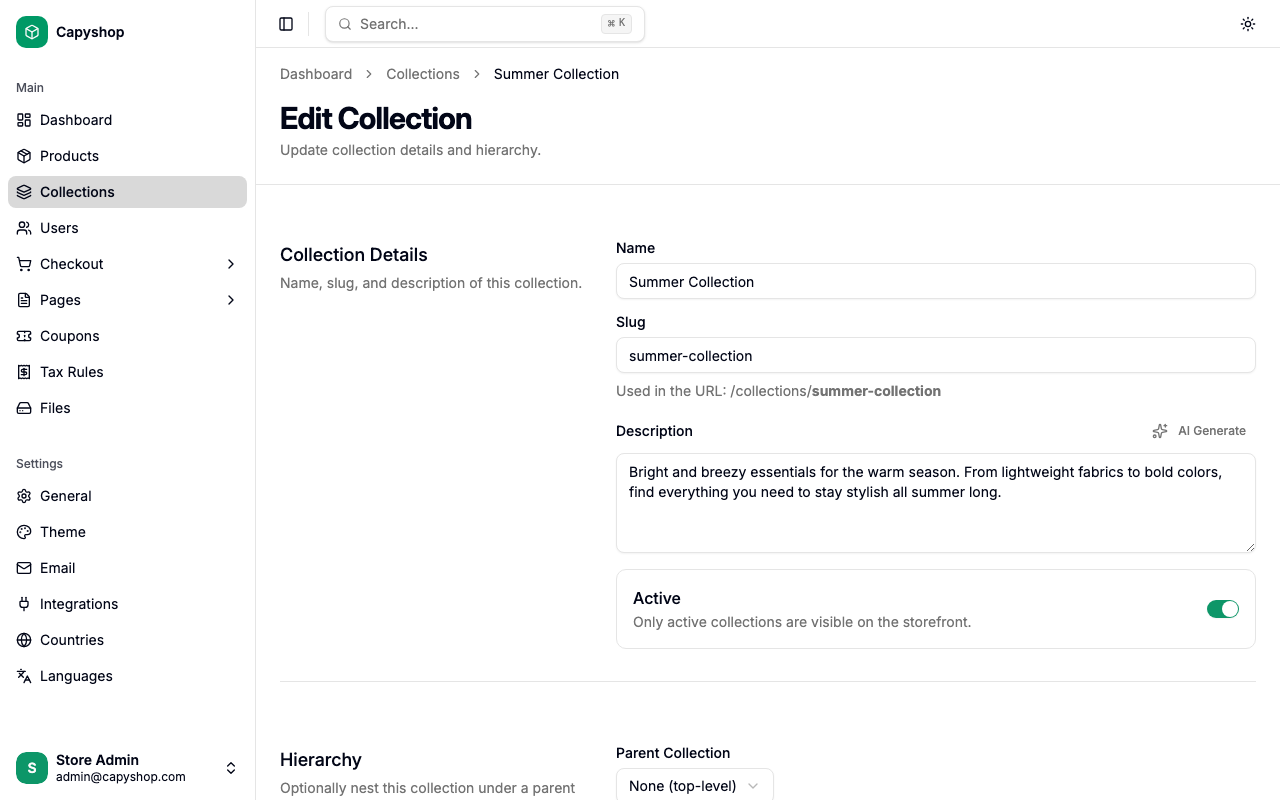
Click Save Changes when you are done. You can also delete the collection from the edit page using the danger zone section at the bottom.
How collections appear on the storefront
Every active collection is reflected in several places across the customer-facing storefront.
Navigation menu
The storefront navigation menu lists all active collections. Collections with sub-collections display them as indented items when expanded.
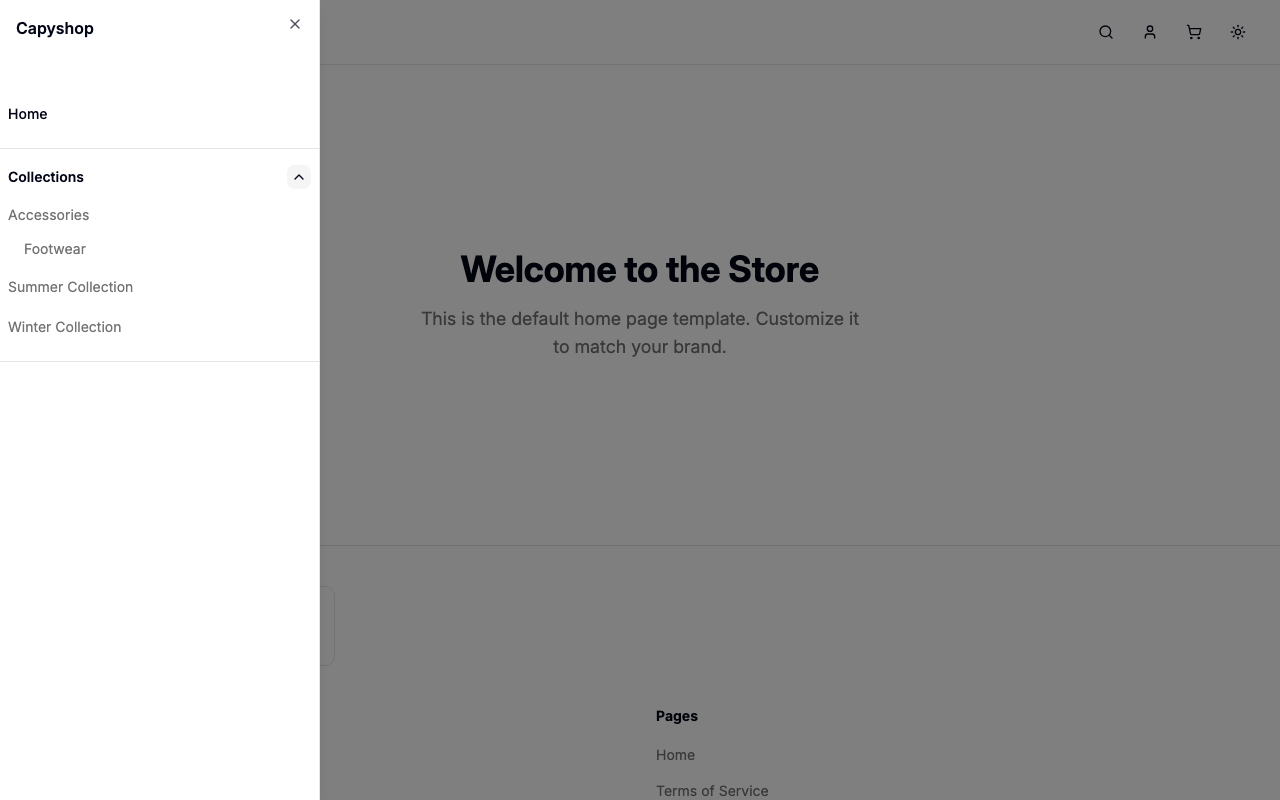
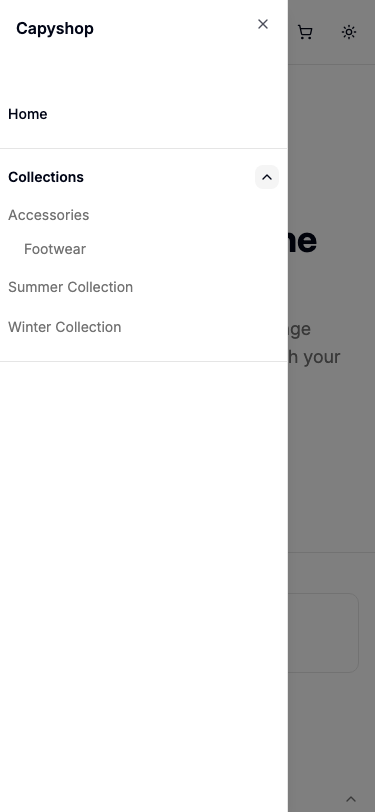
On mobile, the same navigation is accessible through the hamburger menu icon. Tap the chevron next to Collections to expand the list.
Collections page
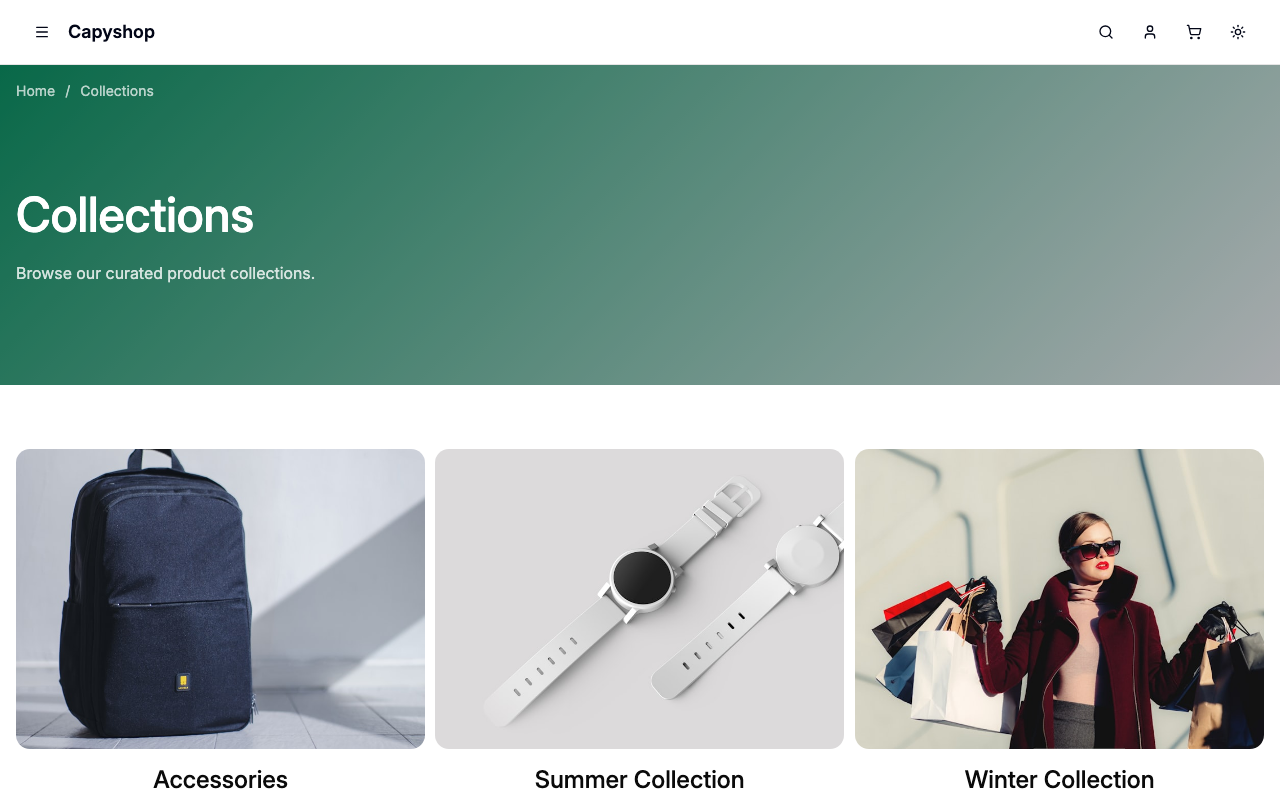
Visiting /collections on the storefront shows a grid of all active top-level collections, each displaying its image, name, and description.
Individual collection page
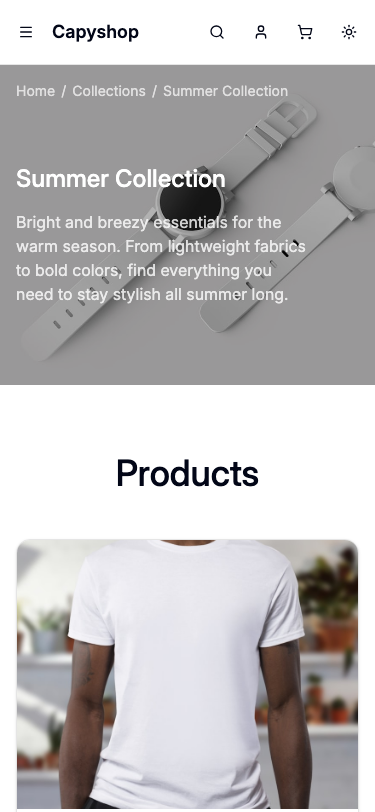
Clicking a collection opens its dedicated page at /collections/{slug}. The page includes:
- A hero banner with the collection image, breadcrumbs, name, and description
- A sub-collections section if the collection has children
- A products grid showing up to 12 products per page with pagination
- An empty state message when no products are assigned yet
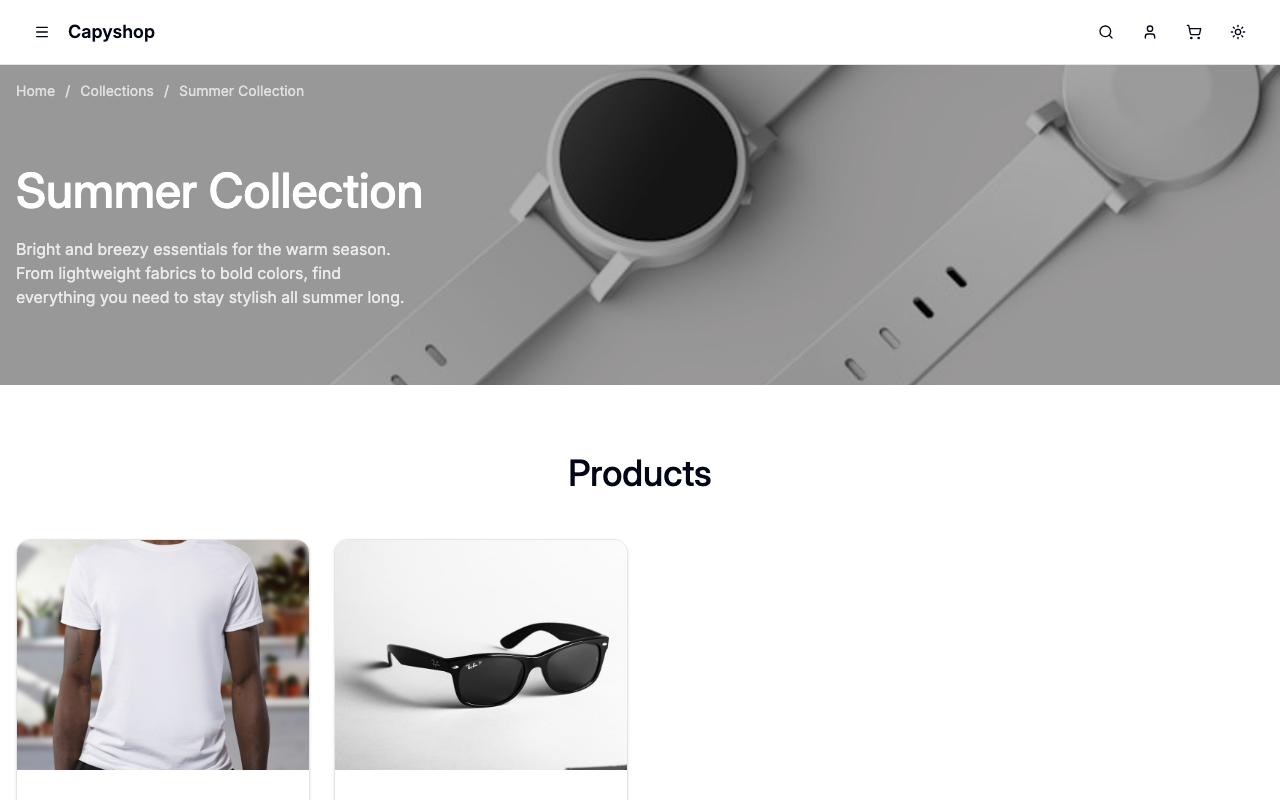
On mobile, the layout adapts with a full-width hero image and stacked product cards.
Product breadcrumbs
When a product belongs to a collection, its page shows breadcrumbs like Home > Collection Name > Product Title, helping customers navigate back to the collection.
Home page sections
Collections can be featured as sections on the home page using the page builder. You can choose from several layout options (center, left, right, full-width) with a customizable call-to-action button.
Sub-collections
Collections support a parent-child hierarchy. A sub-collection:
- Appears on its parent collection's storefront page as a clickable card
- Shows as an indented item under the parent in the navigation menu
- Displays full breadcrumbs: Home > Parent Collection > Sub-collection > Product
To create a sub-collection, set the Parent Collection field when creating or editing a collection.
Machine-readable pages for LLMs
Every collection page has a .md counterpart that returns plain markdown, designed for AI tools and LLMs to consume easily:
/collections.md— lists all active collections with links and descriptions/collections/{slug}.md— full collection details including all products with prices, descriptions, and links
These endpoints return text/markdown content and support pagination for large collections (e.g., /collections/summer-sale.md?page=2).