
Appearance
Carts
Carts hold the products a customer intends to purchase. The platform supports both authenticated carts (linked to a user account) and guest carts (for visitors who have not signed in). From the admin panel you can browse all active carts, inspect their contents, and even modify items on behalf of a customer.
Browsing carts
Open Carts in the admin sidebar to see all active carts. The table displays the associated user (or "Guest" for anonymous carts), item count, and creation date.
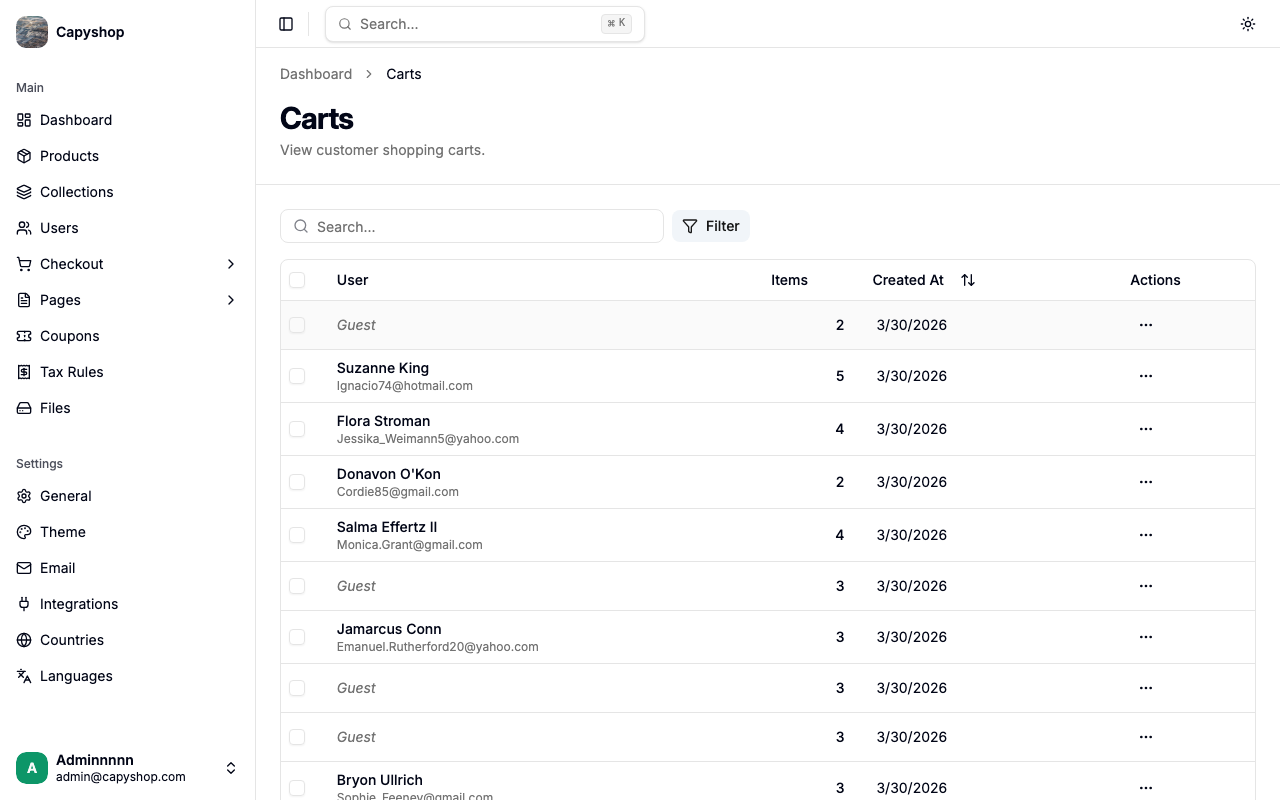
| Column | Description |
|---|---|
| User | Customer name and email, or Guest for anonymous carts |
| Items | Number of distinct products in the cart |
| Created At | Date the cart was first created |
You can sort by clicking column headers and search by customer name or email using the search bar. Use the User filter to show all carts, only carts with a registered user, or only guest carts.
Tip: Guest carts cannot be searched by name or email since they have no associated user. Use the "Guest Only" filter to view them.
Viewing a cart
Click any row in the cart list to open the cart detail page. The page shows the cart information and a full item manager.
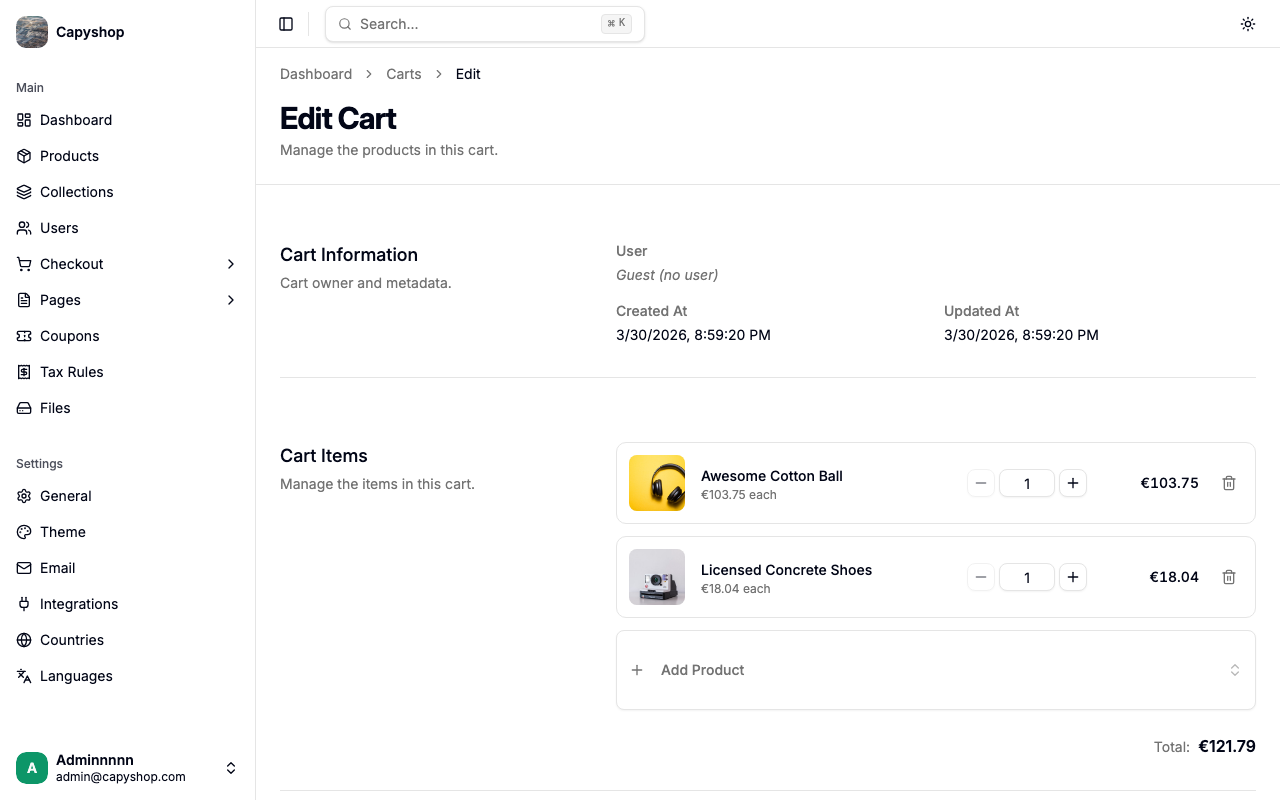
Cart information
| Field | Description |
|---|---|
| User | Customer name and email, or "Guest" for anonymous carts |
| Created At | When the cart was first created |
| Updated At | When the cart was last modified |
Cart items
The items section displays a table with each product's thumbnail, title (links to the product editor), unit price, quantity, and subtotal. A total is shown at the bottom.
Managing cart items
As an admin, you can modify a customer's cart directly from the detail page:
- Add a product — click the add button and search for a product to add to the cart
- Update quantity — use the quantity controls (+ / −) or type a number directly
- Remove an item — click the delete button on any item row
Click Save to persist your changes. Quantity must be at least 1 for every item.
How customers use the cart
Adding products
Customers add products to their cart from product pages using the Add to Basket button. Each click adds one unit. If the product is out of stock, the button changes to Out of Stock and is disabled.
When an item is added, a brief success indicator appears. If the customer tries to add more than the available stock, an error message is shown.
The cart page
Customers access their cart by clicking the cart icon in the navigation bar or by navigating to /cart.
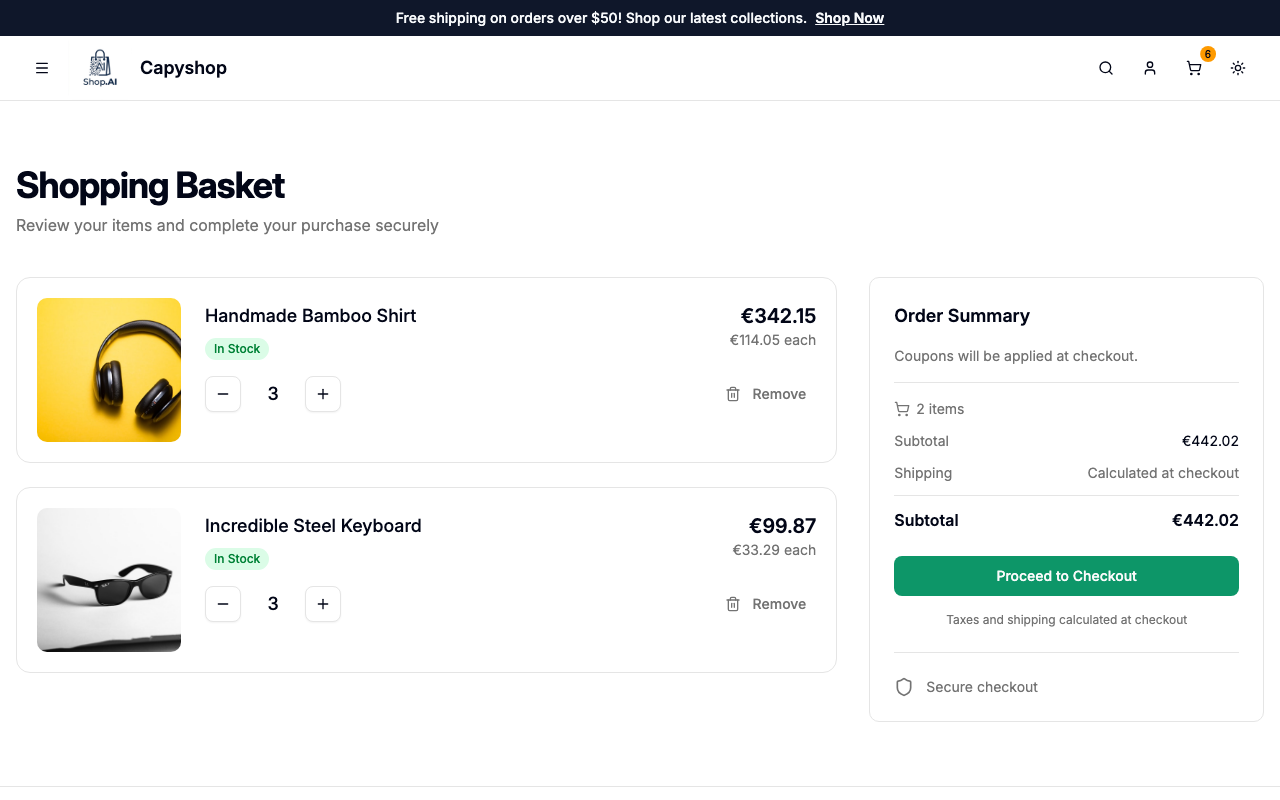
The cart page displays all items with the following information:
| Element | Description |
|---|---|
| Product image | Thumbnail of the product |
| Product title | Clickable link to the product page |
| Stock badge | Green "In Stock", amber "Only X left", or red "Unavailable" |
| Unit price | Price per item |
| Line total | Unit price multiplied by quantity |
| Quantity controls | Minus / Plus buttons to adjust quantity |
| Remove button | Removes the item from the cart |
Stock badges:
- In Stock (green) — the item is available and the quantity is within stock limits
- Only X left (amber) — the customer has more units in the cart than are currently in stock
- Unavailable (red) — the product has been deactivated or is completely out of stock
Important: The plus button is disabled when the quantity reaches the available stock, preventing customers from adding more than what is available.
Order summary sidebar
The right side of the cart page shows a summary with:
- Item count
- Subtotal
- Shipping notice ("Calculated at checkout")
- Total
- Proceed to Checkout button
- A note about taxes and shipping being calculated at checkout
- A secure checkout trust badge
Empty cart
When the cart is empty, a friendly message is displayed with a Continue Shopping button that links back to the home page.
Guest carts
Visitors who are not signed in can still add products to a cart. The system creates a guest cart and stores its ID in the browser's local storage.
When a guest later signs in or creates an account, the guest cart is automatically merged into their authenticated cart:
- Products that exist in both carts have their quantities combined (up to the stock limit)
- Products only in the guest cart are added to the authenticated cart
- The guest cart is then deleted
If the merge has to clamp a combined quantity down to the available stock, the customer sees a notice explaining which line was adjusted, so they're never surprised by a silent change. Customers never lose items they added before signing in.
Stock validation
Stock is validated at multiple points to prevent overselling:
| Point | Validation |
|---|---|
| Adding to cart | Product must be active and have stock > 0 |
| Updating quantity | New quantity cannot exceed available stock |
| Entering checkout | Stock is reserved (decremented from product inventory) |
| Checkout expiry | If the checkout session expires (15 minutes), reserved stock is restored. The customer sees a warning toast two minutes before expiry, giving them a chance to finish or extend the session. |
| Order completion | Stock stays decremented; the checkout snapshot is deleted |
Cart lifecycle
Each cart goes through a simple two-status lifecycle:
| Status | Meaning |
|---|---|
| Active | The cart is in use — items can be added, updated, or removed |
| Completed | The customer completed checkout and an order was created |
When a customer clicks Proceed to Checkout, a checkout snapshot is created from the cart. The cart remains active during checkout. Once the order is successfully placed, the cart is marked as completed and a new active cart can be started.
Tip: The admin cart list only shows active carts. Completed carts are no longer displayed since they have been converted into orders.