
Appearance
Tax Rules
Tax rules define how taxes are calculated for the products in your store. Each tax rule specifies a generic rate (applied by default) and optional country-specific overrides. You assign tax rules to individual products — when a customer checks out, the system looks up each product's tax rule and calculates tax based on the customer's billing country.
Tax-inclusive storefront prices. As required for B2C sales in the EU, every price the customer sees on Capyshop's storefront — product cards, the product page, the cart, checkout, and order confirmation emails — already includes tax. The price you enter on the product form is the pre-tax base; the storefront recalculates and displays the tax-inclusive amount.
Browsing your tax rules
Open Tax Rules in the admin sidebar to see the full list. The table displays each rule's name, type, value, default status, and creation date.
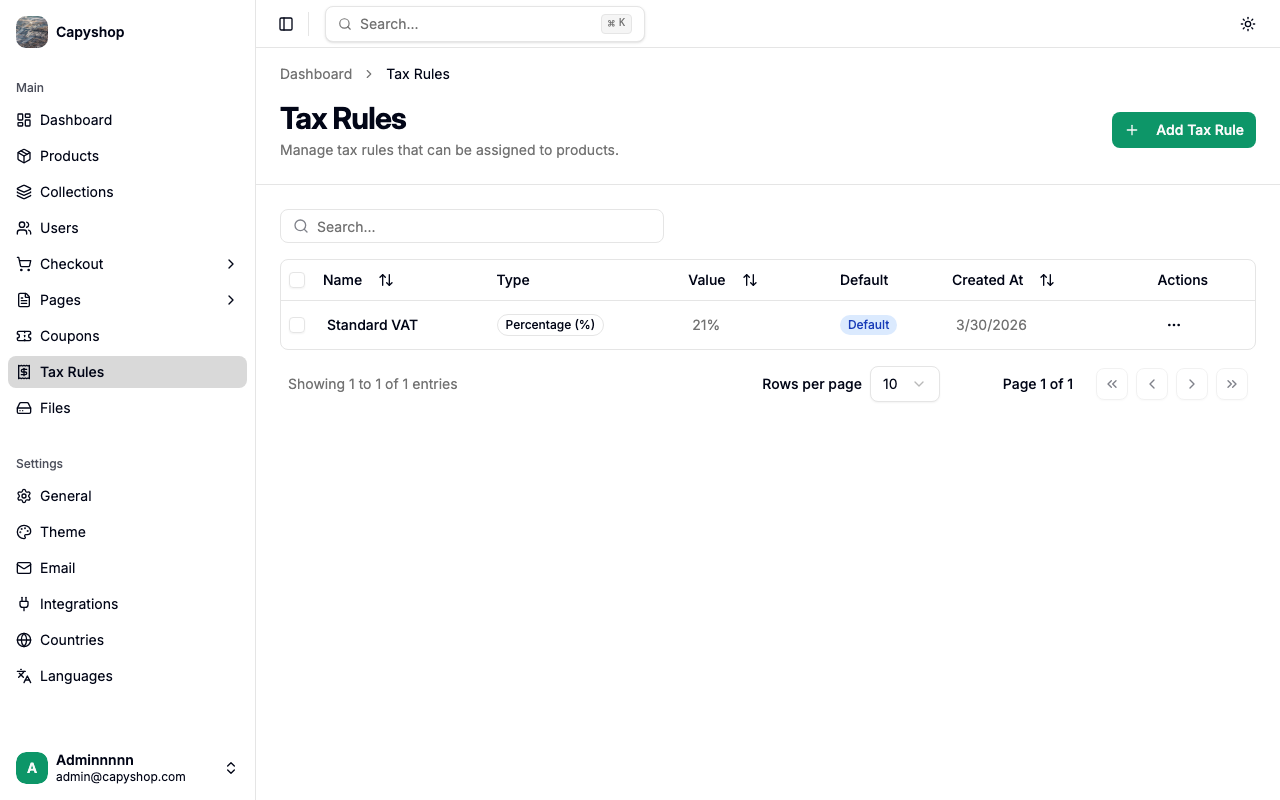
| Column | Description |
|---|---|
| Name | The tax rule name (click to edit) |
| Type | Percentage (%) or Amount (fixed per unit) |
| Value | The generic tax rate (e.g., 21% or $2.00 per unit) |
| Default | Shows a Default badge if this is the pre-selected rule on the product form |
| Created At | Date the rule was created |
| Actions | Dropdown with Edit and Delete options |
You can sort by clicking any column header and search by typing in the search bar.
Bulk actions
Select multiple tax rules using the checkboxes to reveal the Delete bulk action button. A confirmation dialog will appear before the rules are permanently removed.
Important: Deleting a tax rule removes it from all products that use it. Those products will have no tax rule assigned until you set a new one.
Creating a tax rule
Click Add Tax Rule on the list page to open the creation form.
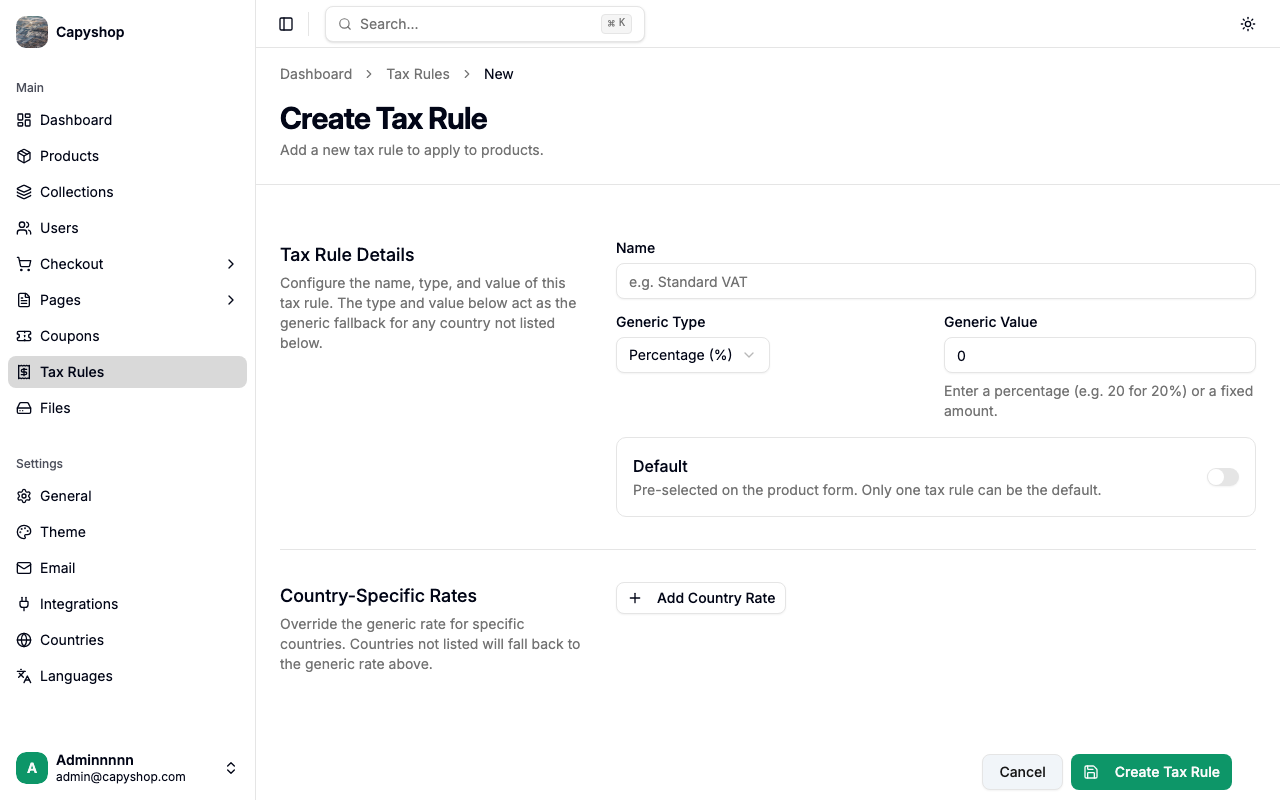
Tax rule details
| Field | Required | Description |
|---|---|---|
| Name | Yes | A descriptive name (e.g., "Standard VAT", "Reduced Rate") |
| Generic Type | Yes | Choose between Percentage (%) or Amount (fixed value per unit) |
| Generic Value | Yes | The default rate. Enter a percentage (e.g., 20 for 20%) or a fixed amount per unit |
| Default | No | Toggle to make this the pre-selected tax rule on the product form. Only one rule can be the default |
Country-specific rates
Below the generic rate, you can add overrides for specific countries. Click Add Country Rate to add a new entry.
| Field | Required | Description |
|---|---|---|
| Country | Yes | The country this override applies to |
| Type | Yes | Percentage (%) or Amount for this country |
| Value | Yes | The rate for this country (overrides the generic rate above) |
You can add as many country-specific rates as needed. Countries not listed will fall back to the generic rate.
Tip: Use country-specific rates when tax rates vary by region. For example, a "Standard VAT" rule might have a generic rate of 21% but override it to 19% for Germany and 25% for Sweden.
Where the per-country rate kicks in
The storefront uses the generic rate to display tax-inclusive prices on product cards, the product page, the cart, and checkout — at that point the customer's billing country is not yet known. The per-country override is applied at checkout, once the billing address has been collected, and the tax line on the order summary is recalculated to match the billing country.
When a tax rule has per-country overrides, the storefront product page shows a small notice telling the customer that the final amount may be recalculated at checkout based on their location.
Previewing per-country prices in the admin form
Below the Base Price field on the product form, Capyshop shows the price-with-tax customers will see. When the assigned tax rule has any per-country overrides, a View per-country prices button appears — click it to see a country-by-country breakdown (Country, Rate, Final price) so you can confirm what each market will be charged before saving the product.
Editing a tax rule
Click any tax rule name in the list (or choose Edit from the actions dropdown) to open the edit form. It contains the same fields as the creation form, pre-populated with the current data.
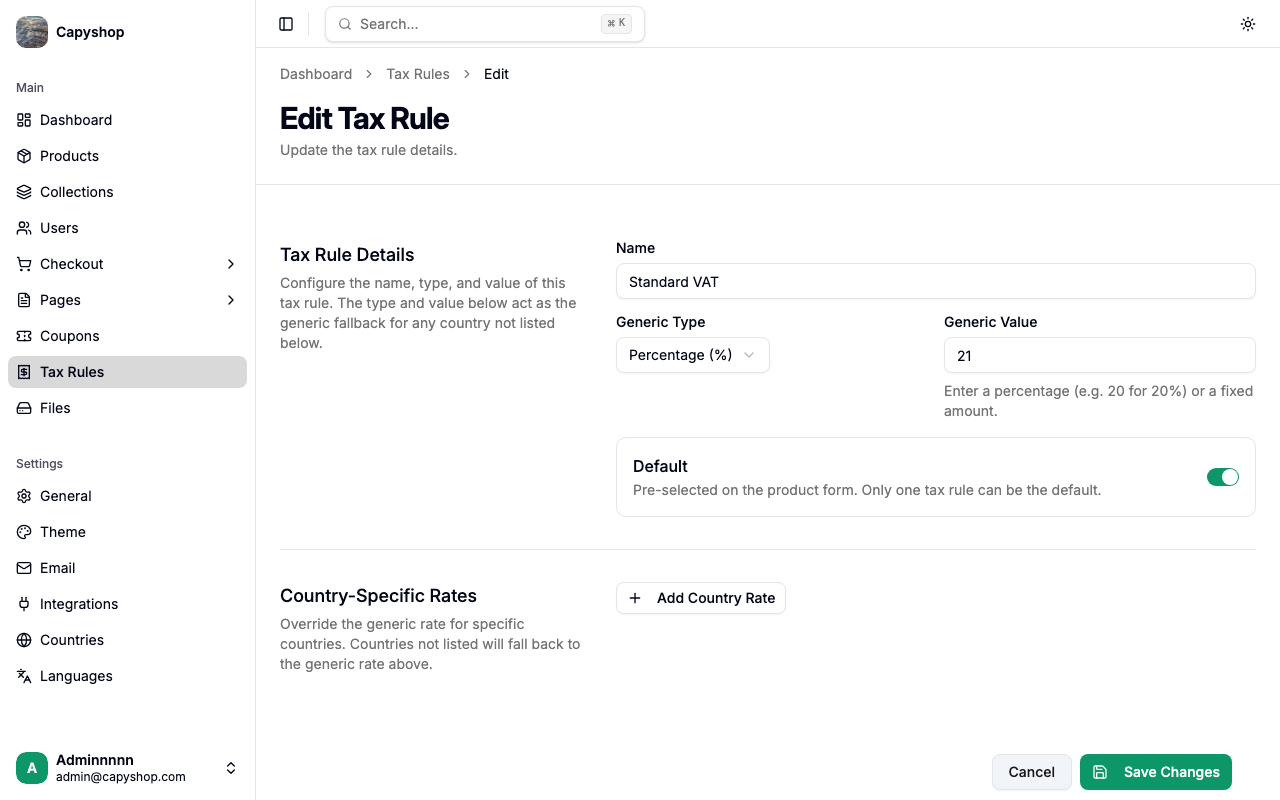
Click Save Changes when you are done.
Assigning tax rules to products
Tax rules are assigned on the product edit form. When editing a product, you will find a Tax Rule dropdown that lists all available tax rules. If you set a rule as the default, it will be pre-selected for new products.
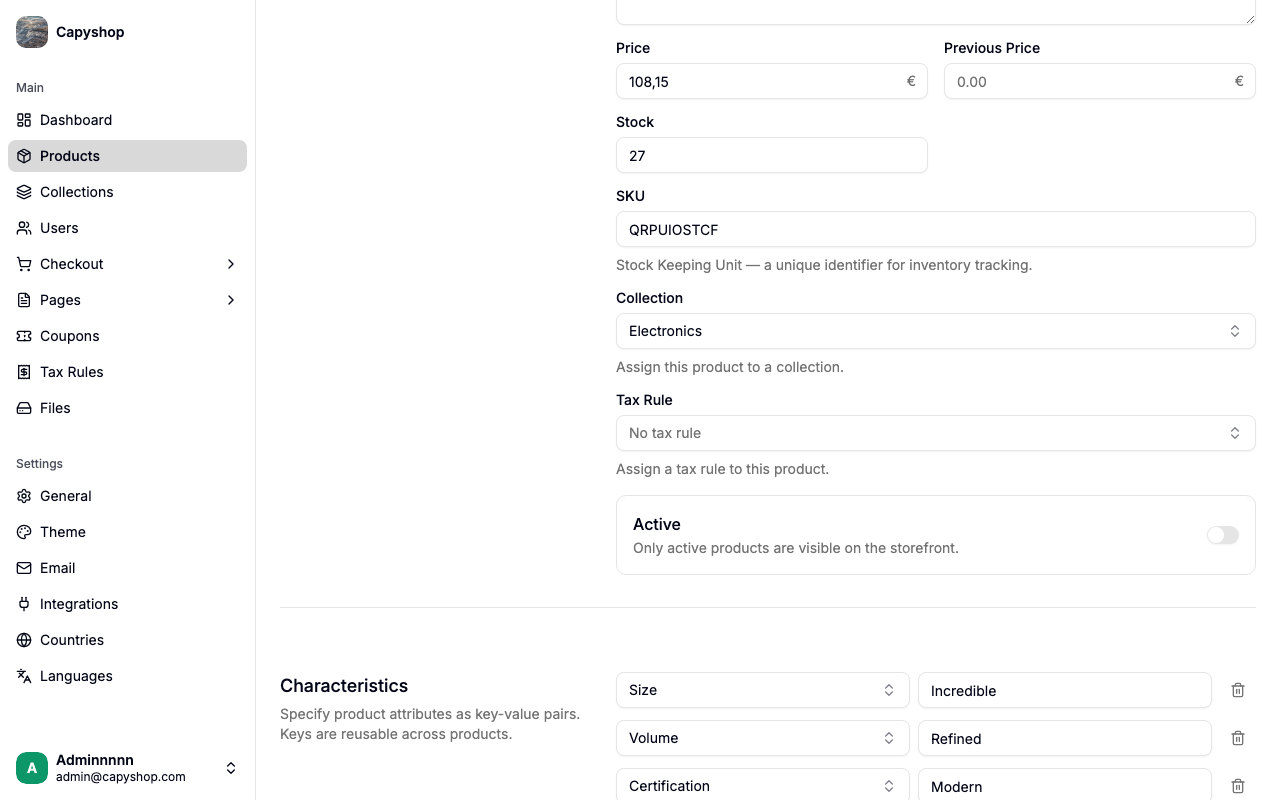
A product can have at most one tax rule. If no tax rule is assigned, no tax is charged for that product.
How tax rules work at checkout
When a customer proceeds to checkout, the system calculates tax for each item in the cart:
- Each product's assigned tax rule is looked up
- The billing country drives the rate (when "billing same as shipping" is on, the shipping country is used; otherwise the billing address determines the rate)
- If the billing country has a country-specific rate, that rate is used
- Otherwise, the generic rate is used as a fallback
- If the product has no tax rule, tax is zero for that item
When the customer changes their billing country during checkout, the selected payment method and any in-flight Stripe PaymentIntent are cleared so the tax line is recomputed for the new jurisdiction before the customer pays.
Tax calculation
| Type | Formula | Example |
|---|---|---|
| Percentage | Price x Quantity x (Rate / 100) | $50 x 2 x (21 / 100) = $21.00 tax |
| Amount | Rate x Quantity | $2.00 x 2 = $4.00 tax |
The Estimated Tax shown at checkout is the sum of tax amounts across all items. The price the customer sees on the storefront already includes this tax — the line in the order summary is the same amount, broken out for transparency.
Important: Tax amounts are captured at the moment the checkout is created. If you change a tax rule after a customer has started checkout, their order will use the rate that was in effect when they entered checkout.