
Appearance
Reviews
Customer reviews let shoppers rate products and share their experience. Each product page shows an average star rating, the total number of reviews, and a list of all reviews left by verified buyers. Store admins can browse and moderate every review from a dedicated dashboard.
How reviews work
- Only customers who have purchased the product can leave a review. The order must be in Paid, Shipped, or Delivered status.
- Each customer can leave one review per product. They can edit or delete their own review at any time.
- A review consists of a 1–5 star rating, a title (up to 200 characters), and a review body (up to 2000 characters).
- The product's average rating and review count are recalculated automatically every time a review is created, updated, or deleted.
Tip: A customer's own review is always pinned to the top of the reviews list on the product page so they can find it again easily.
What customers see
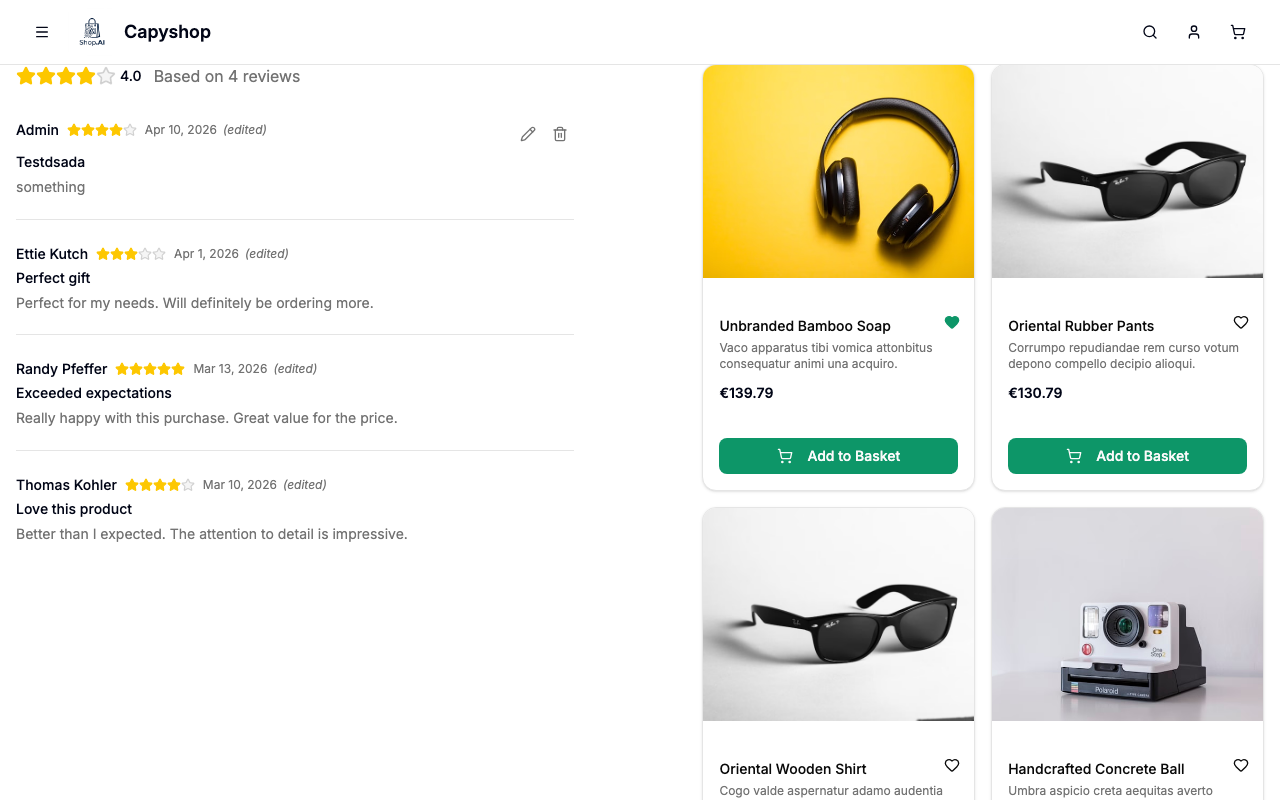
On every product page, the Customer Reviews section displays:
- The product's average star rating and total number of reviews
- A list of reviews (5 per page) with the reviewer's name, star rating, title, body, and date
- An edited label next to any review the author has updated
- Edit and Delete buttons next to the customer's own review
- A Write a Review form, but only for signed-in customers who have purchased the product and have not yet reviewed it
Customers who try to review a product they have not purchased see the message "You must purchase this product to leave a review." Visitors who are not signed in see "Sign in to write a review."
Moderating reviews
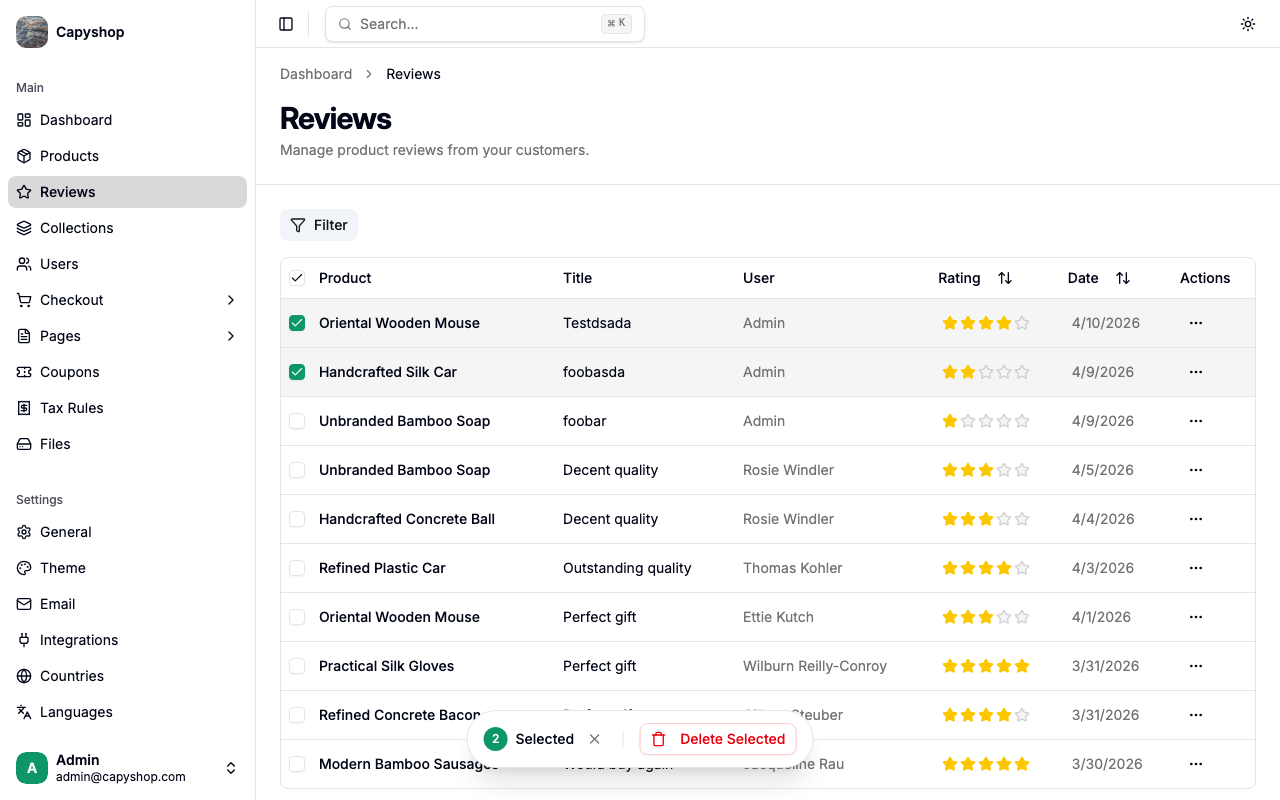
Open Reviews in the admin sidebar to see every review left by your customers.
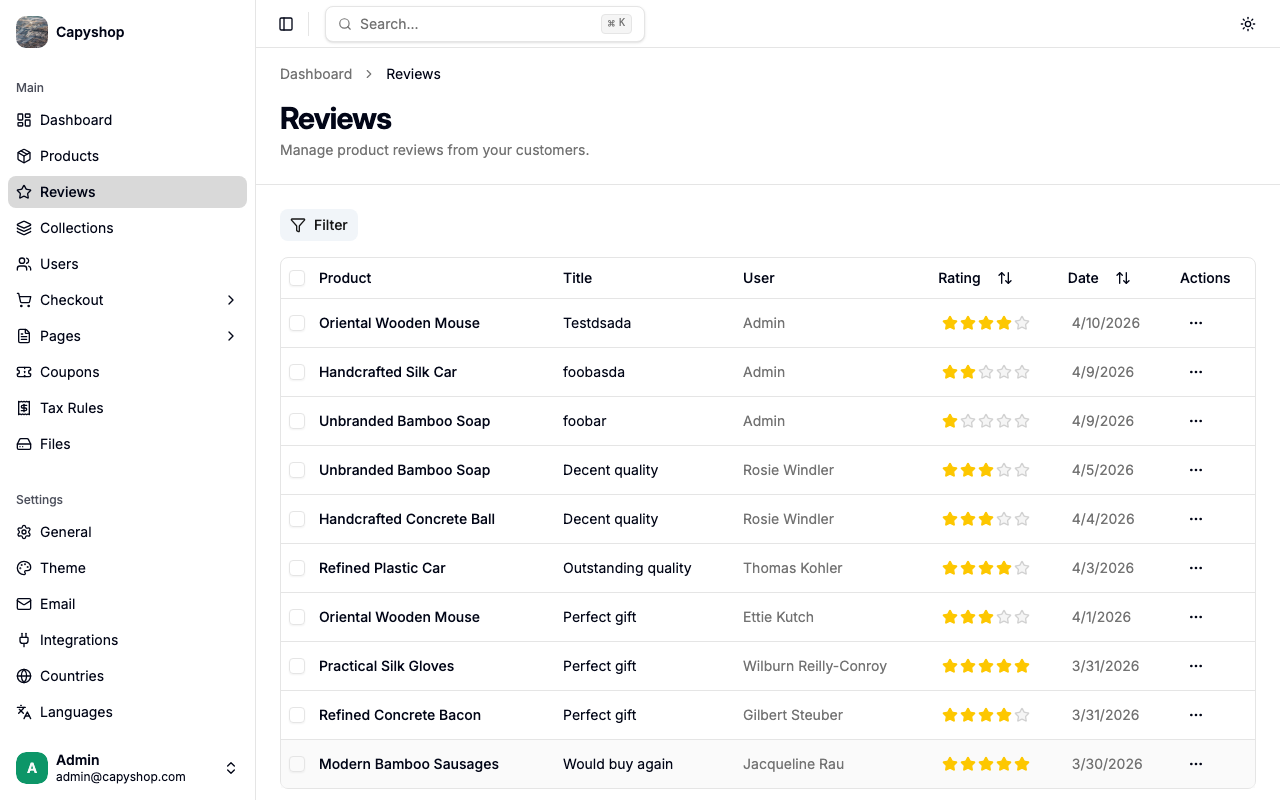
The table displays each review's product, title, customer, star rating, and date. Click the product name to open the product page in a new tab.
| Column | Description |
|---|---|
| Product | The reviewed product (links to the storefront page) |
| Title | The headline the customer gave their review |
| User | The customer who left the review |
| Rating | Star rating from 1 to 5 (sortable) |
| Date | When the review was created (sortable) |
| Actions | Dropdown with View Detail and Delete options |
You can sort by Rating or Date by clicking the column header.
Filtering
Click Filter above the table to narrow the list by rating or by product.
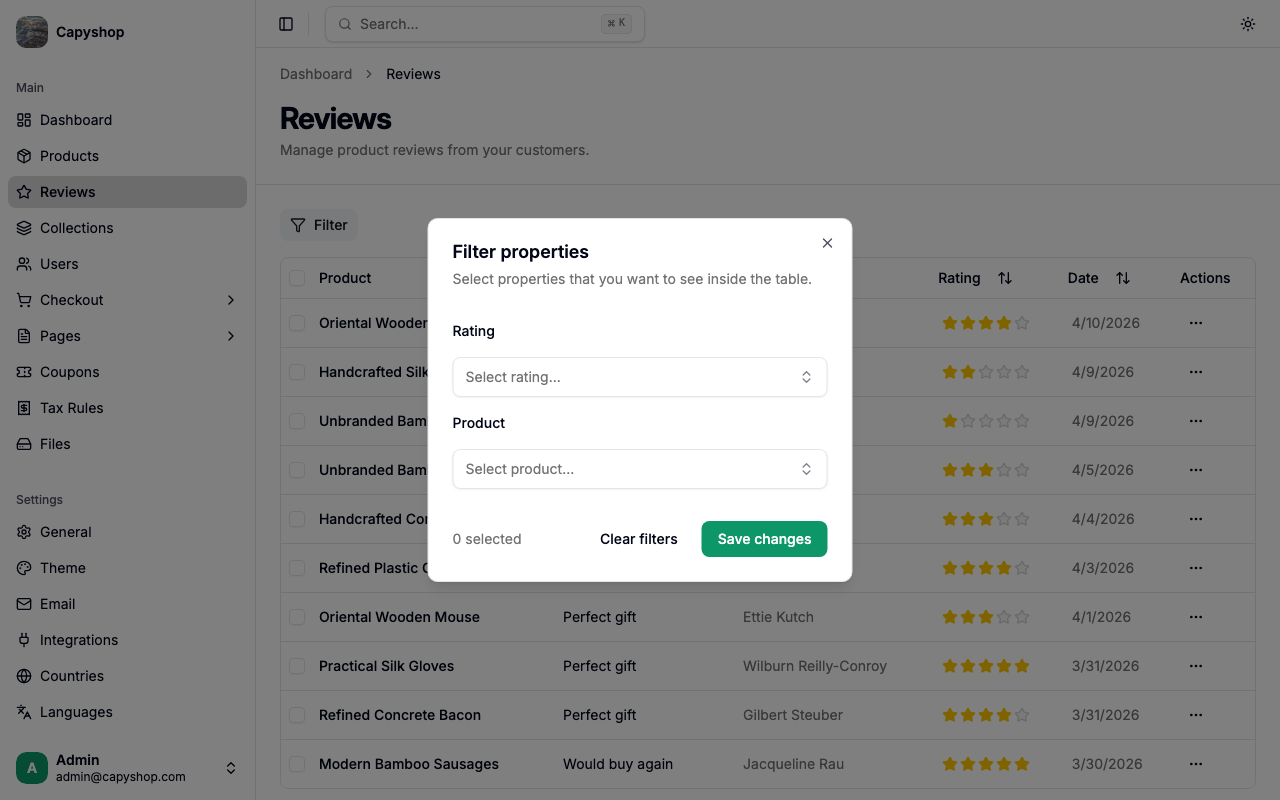
| Filter | Options |
|---|---|
| Rating | 1 ★, 2 ★, 3 ★, 4 ★, or 5 ★ |
| Product | Any product that has at least one review |
Click Save changes to apply the filters, or Clear filters to reset.
Viewing the full review
Open the actions dropdown on any row and choose View Detail to read the full review in a dialog. This is useful when the title or body is longer than the table preview.
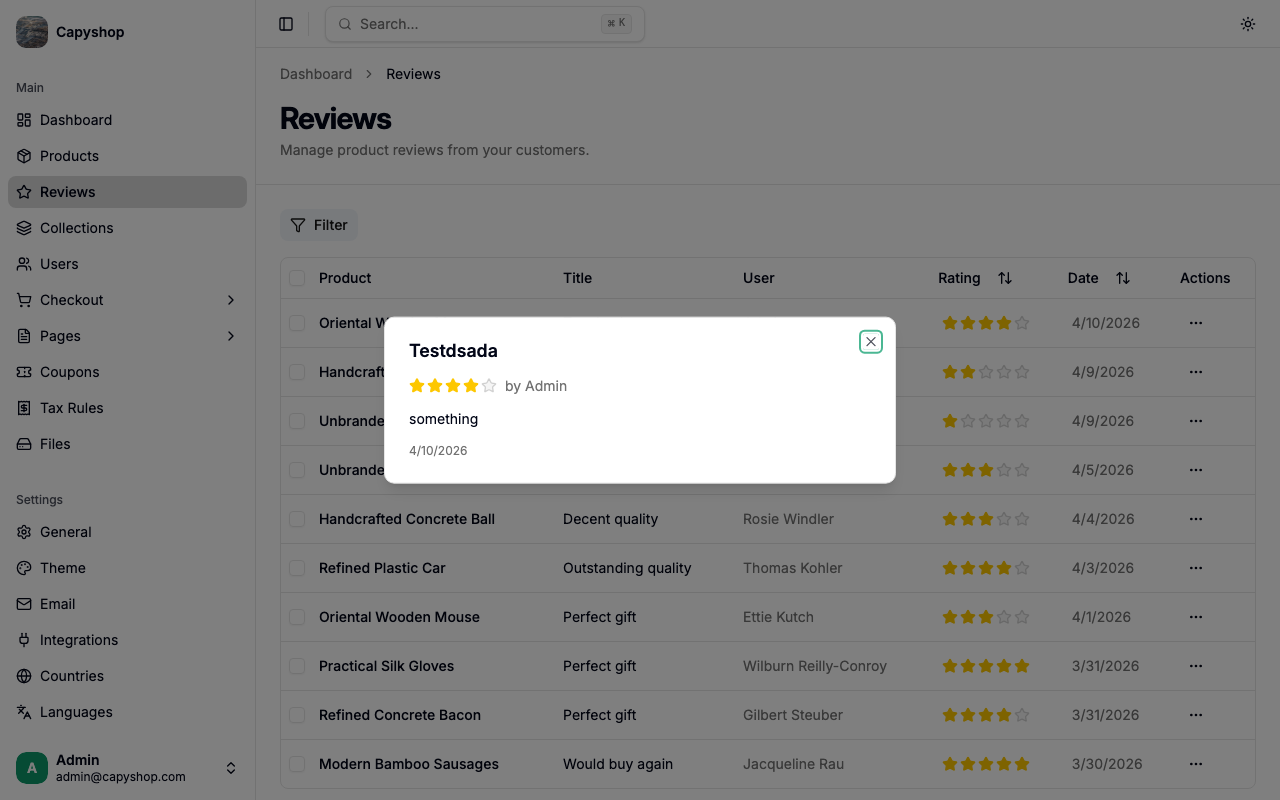
The dialog shows the star rating, the customer's name, the full review body, and the creation date.
Deleting a review
To remove a single review, open the actions dropdown on the row and select Delete. A confirmation dialog appears before the review is permanently removed.
To remove several at once, tick the checkboxes on the left of each row to reveal the bulk action toolbar, then click Delete Selected.
Important: Deleting a review is permanent. After a review is deleted, the product's average rating and review count are recalculated automatically.
Review request emails
One week after an order is marked as Delivered, Capyshop automatically emails the customer asking them to review the products they purchased. The email links them straight to the product page where they can leave a rating.
This gives customers enough time to actually use the product before being asked for feedback, and removes the need for you to chase reviews manually.
Tips
- Browse the 1 ★ filter regularly to spot quality or fulfillment issues that customers are flagging.
- Star ratings are stored on the product itself, so they appear instantly anywhere your storefront shows products — no manual recalculation needed.
- Reviews are tied to verified purchases, so you do not need to moderate spam from random visitors.