
Appearance
Products
Products are the core of your store catalog. From the admin panel you can create, edit, and organize products — each with its own title, description, pricing, images, and custom characteristics. Everything you configure here is reflected on the customer-facing storefront.
Browsing your products
Open Products in the admin sidebar to see the full product list. The table displays each product's title, slug, SKU, status, price, and stock at a glance.
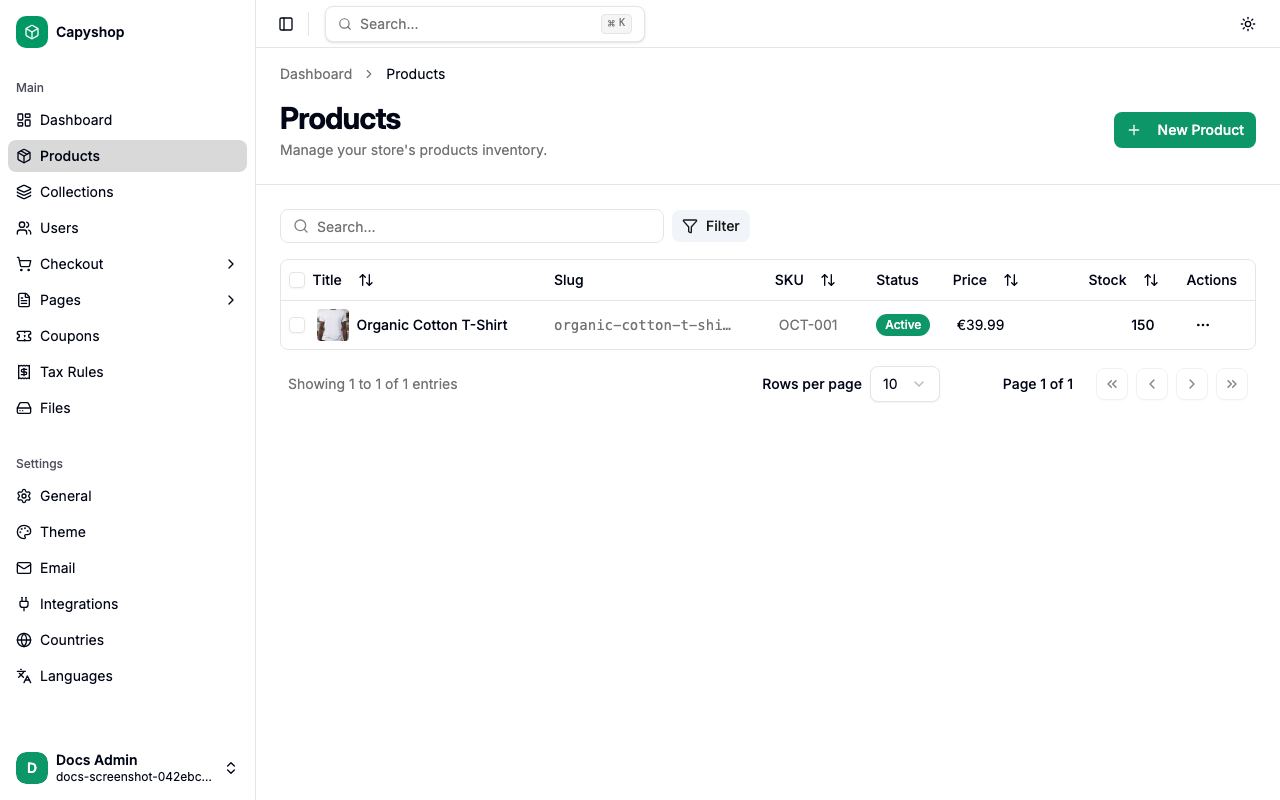
| Column | Description |
|---|---|
| Title | Product name with thumbnail (click to edit) |
| Slug | URL path used on the storefront |
| SKU | Stock keeping unit for inventory tracking |
| Status | Active (visible to customers) or Inactive |
| Price | Current selling price in your store currency |
| Stock | Available inventory count |
You can sort by clicking any column header, and search by typing in the search bar at the top. Use the Filter button to narrow results by price range or status.
Bulk actions
Select one or more products using the checkboxes on the left, then use the bulk actions bar that appears at the bottom:
- Activate — make selected products visible on the storefront
- Deactivate — hide selected products from customers
- Delete — permanently remove selected products (a confirmation dialog will appear)
Creating a product
Click New Product on the products list page to open the creation form.
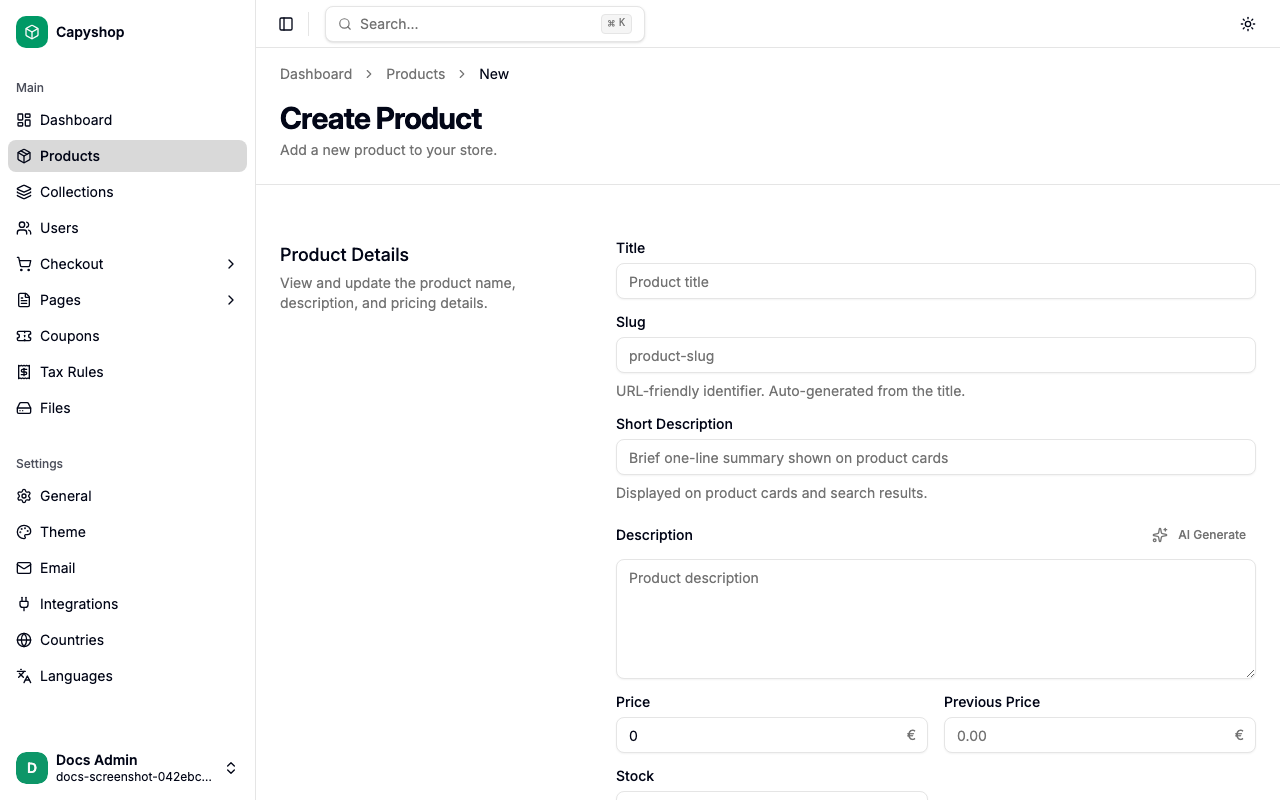
Product details
| Field | Required | Description |
|---|---|---|
| Title | Yes | The product name shown to customers. Automatically generates a URL slug. |
| Slug | Yes | URL-friendly identifier (lowercase with hyphens). Auto-generated from the title, but you can edit it. |
| Short Description | No | Brief summary displayed on product cards in collections and search results. |
| Description | Yes | Full product description shown on the product detail page. Can be generated with AI if enabled. |
| Base Price | Yes | Current selling price (excluding tax). Displayed prominently on the storefront, recalculated to include tax for B2C display. |
| Show Previous Price Reduction | No | Opt in to displaying a price reduction. The strikethrough on the storefront uses the lowest price of the past 30 days, in line with the EU Omnibus Directive (see Price reductions below). |
| Measure Value & Measure Unit | No | Optional pair of fields for unit pricing (e.g. €/kg, €/L). Both must be set together. |
| Stock | Yes | Available inventory. When stock reaches zero, the Add to Basket button is replaced with Out of Stock. |
| SKU | No | Stock keeping unit for internal inventory tracking. Must be unique if provided. |
| Brand | No | Product brand name. Powers the Google Merchant Center brand field and Google structured data on the storefront. |
| GTIN | No | Global Trade Item Number (UPC, EAN, ISBN, etc.). Powers the Google Merchant Center gtin field and Google structured data. |
| Collection | No | Assign the product to a collection (category). Affects breadcrumb navigation on the storefront. |
| Tax Rule | No | Tax calculation rule. Automatically set to the default tax rule if one exists. |
| Active | No | Toggle to control storefront visibility. Products are inactive by default. |
Tip: If your store has AI integrations enabled, you can click the AI generate button next to the Description field to automatically create a product description from the title.
Tax preview on the form
Below the Base Price field the form shows the price with tax that customers will see (storefront prices always include tax for EU B2C compliance). When the assigned tax rule has per-country overrides, a View per-country prices button opens a breakdown of the final price each country will be charged, so you can confirm the values before saving.
Characteristics
Characteristics are custom key-value attributes that describe your product (e.g., Material, Size, Color). Click Add Characteristic to add a new row.
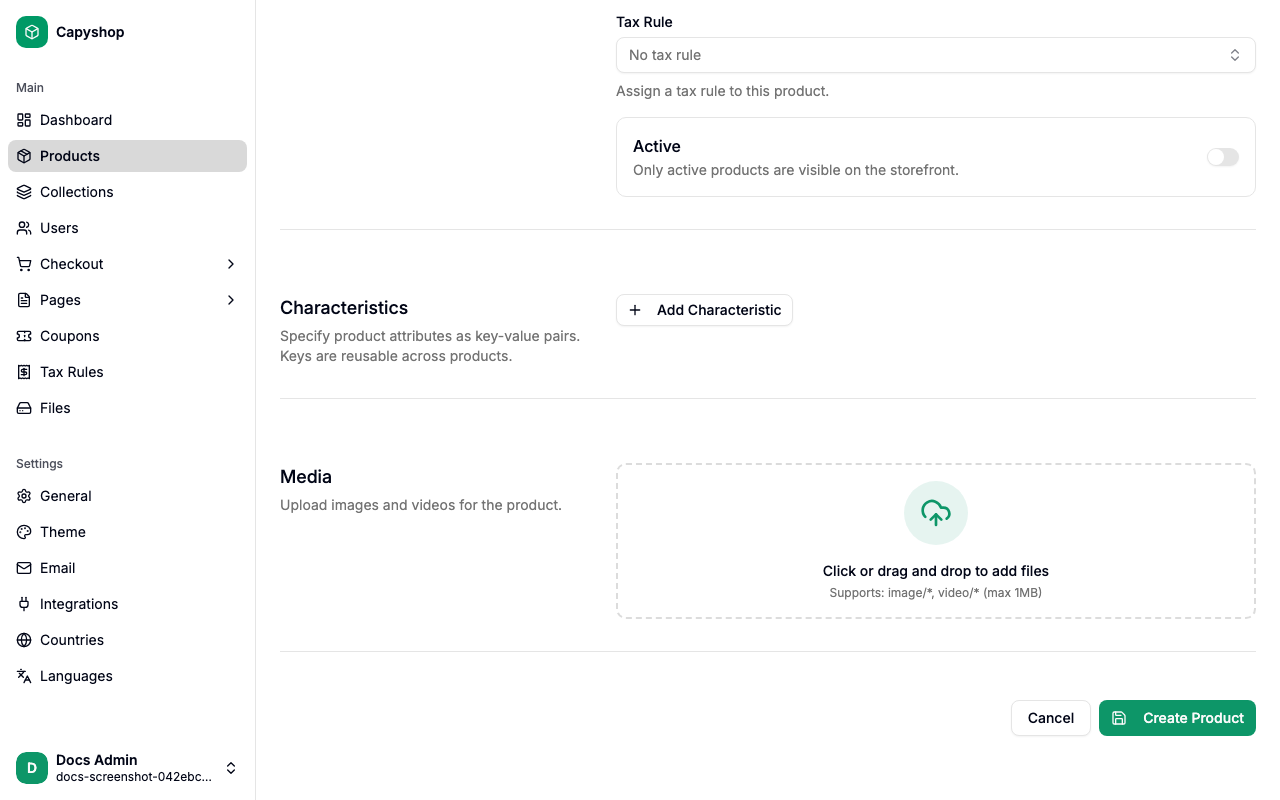
- Key — select an existing key or type a new one to create it
- Value — free text (e.g., "100% Organic Cotton", "Large", "Red")
You can add as many characteristics as needed. They appear in a collapsible Product Characteristics accordion on the storefront.
Media
Upload product images and videos using the file upload area. You can upload multiple files at once.
- The first image is used as the product thumbnail in the list and on product cards
- Images appear in a carousel on the product detail page, in the order you upload them
Editing a product
Click any product title in the list (or the edit action in the row menu) to open the edit form. It contains the same fields as the creation form, pre-populated with the product's current data.
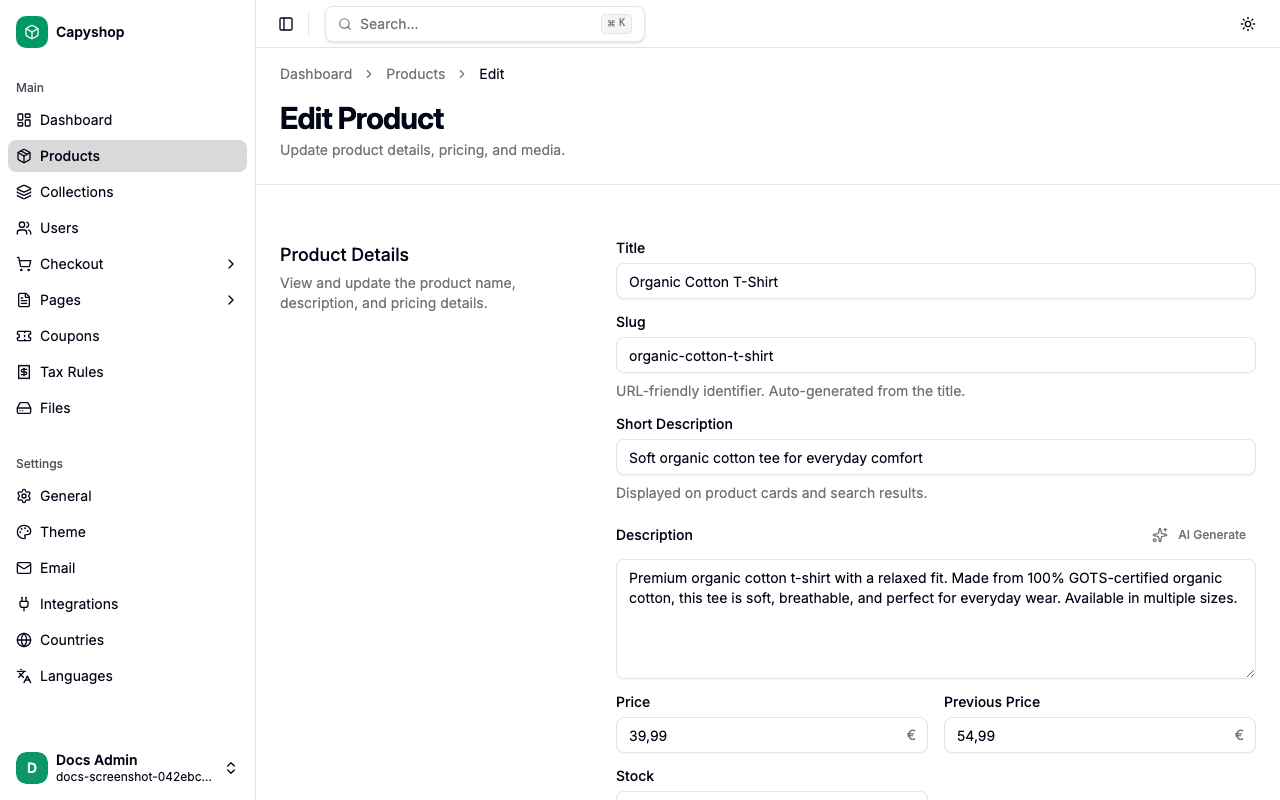
Click Save Changes when you are done. You can also delete the product from the edit page using the danger zone section at the bottom.
How products appear on the storefront
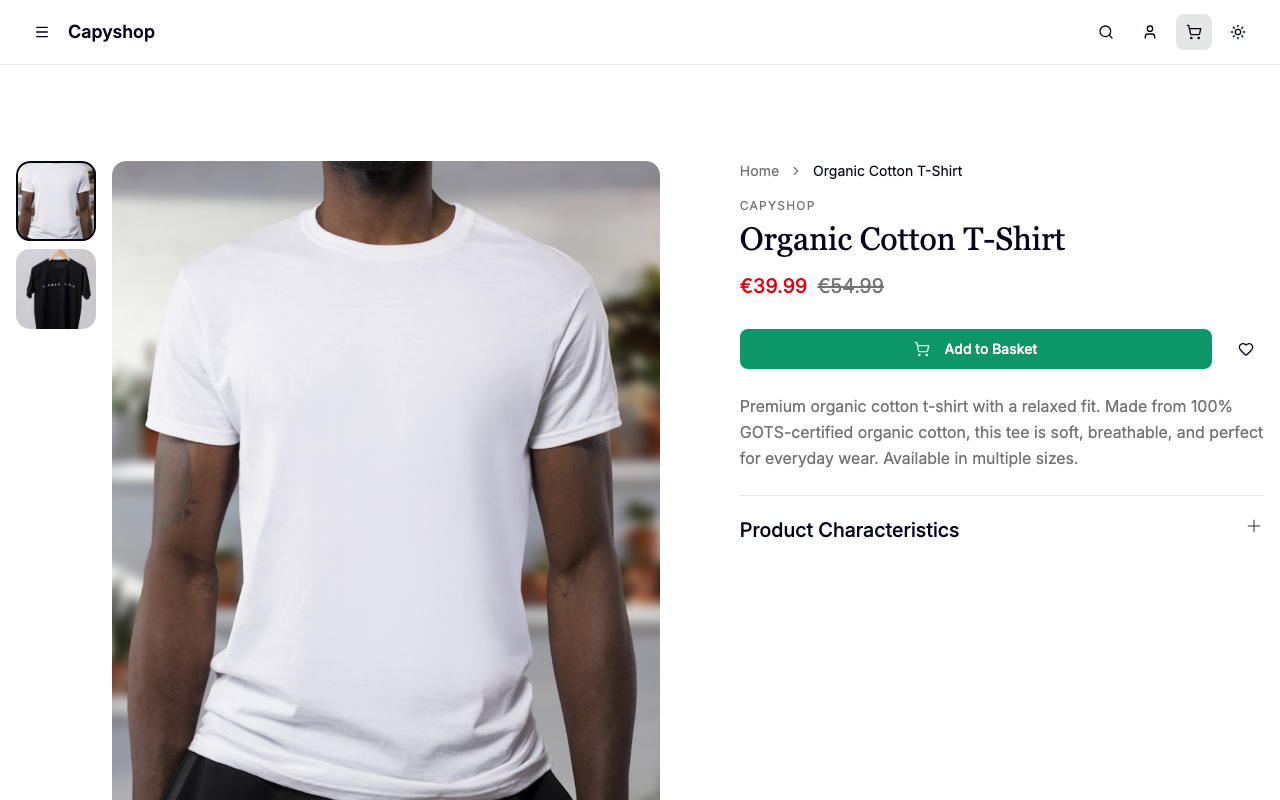
Every field you configure in the admin panel maps to a specific element on the customer-facing product page.
| Admin field | Storefront display |
|---|---|
| Title | Large heading at the top of the page, and in the breadcrumb trail |
| Description | Text paragraph below the add-to-cart button |
| Short Description | Subtitle on product cards (collections, search results, home page) |
| Base Price | Current price displayed prominently, always including tax |
| Show Previous Price Reduction | When enabled and the current price is below the 30-day lowest, the 30-day low is shown with a strikethrough next to the current price (red sale styling) |
| Measure Value / Unit | Renders a "per kg" / "per L" / etc. line under the price on cards, the product page, collection, and search |
| Stock > 0 | Add to Basket button is enabled |
| Stock = 0 | Button changes to Out of Stock and is disabled |
| Active | Only active products are visible to customers |
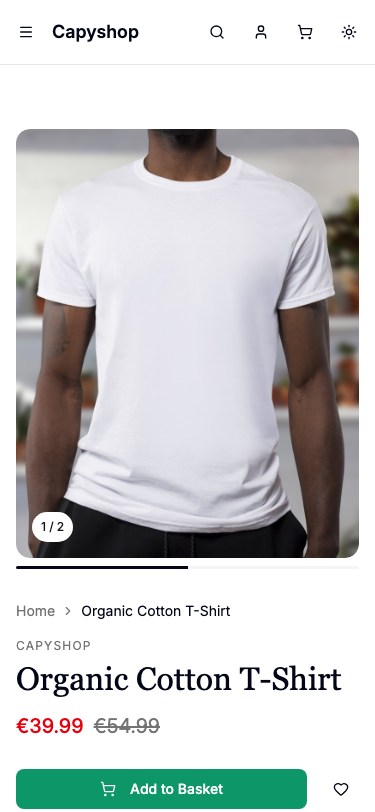
| Media | Image carousel with thumbnail sidebar (desktop) and swipe carousel (mobile), plus a zoom lightbox |
| Collection | Appears in the breadcrumb (Home > Collection > Product) and as a brand label above the title |
| Characteristics | Collapsible Product Characteristics accordion with key-value list |
| Slug | Determines the product URL (e.g., /product/organic-cotton-t-shirt) |
Price reductions (EU Omnibus Directive)
Capyshop follows the EU Omnibus Directive for price reductions. To advertise a sale, drop the product's Base Price below what it has been over the last 30 days and turn on Show Previous Price Reduction. The storefront will then strike through the 30-day lowest price (not a manually entered prior amount) — that is the legally required reference price.
The form gives you live feedback while you edit:
- Reduction will be shown — the form confirms the strikethrough customers will see, e.g. "Customers will see €18.00 with €24.00 struck through (the 30-day lowest price)".
- No reduction will be shown — if the current Base Price is not below the 30-day lowest, the form warns that no sale badge will appear, even with the toggle on.
Price changes are recorded automatically every time a product or variant is saved. A weekly cleanup job purges history older than 90 days, so storage stays bounded while the 30-day window remains intact.
Unit pricing
Unit pricing shows customers a normalized "per kg" / "per L" / "per m" / "per m²" rate underneath the price on cards, the product page, collection, and search results. It is required by EU rules for many product categories and is also exported to the Google Merchant Center feed as unit_pricing_measure and unit_pricing_base_measure.
Set both Measure Value and Measure Unit on the product:
- Measure Value — the product's measurable quantity (e.g.
750). - Measure Unit — the unit of measurement (kg, g, L, ml, m, cm, m²).
Capyshop converts to the appropriate base unit (kg, L, m, m²) when displaying the per-unit rate. Products sold per item — count-based products — are exempt from unit pricing per the directive and should leave these fields empty.
Mobile experience
On mobile devices, the product page adapts with a full-width image carousel (with swipe navigation and a progress bar) and a sticky Add to Basket button fixed at the bottom of the screen for easy access while scrolling.
Machine-readable pages for LLMs
Every product page has a .md counterpart that returns plain markdown, designed for AI tools and LLMs to consume easily:
/product/{slug}.md— full product details including description, price, stock, characteristics, and images
These endpoints return text/markdown content with absolute URLs for images and links.