
Appearance
Files
The Files page is where you manage all uploaded media in your store — product images, logos, banners, and any other files. From here you can browse, search, upload, and delete files.
Open Files in the admin sidebar to get started.
Browsing your files
The file list displays every uploaded file in a table with a thumbnail preview, filename, type, size, and upload date.
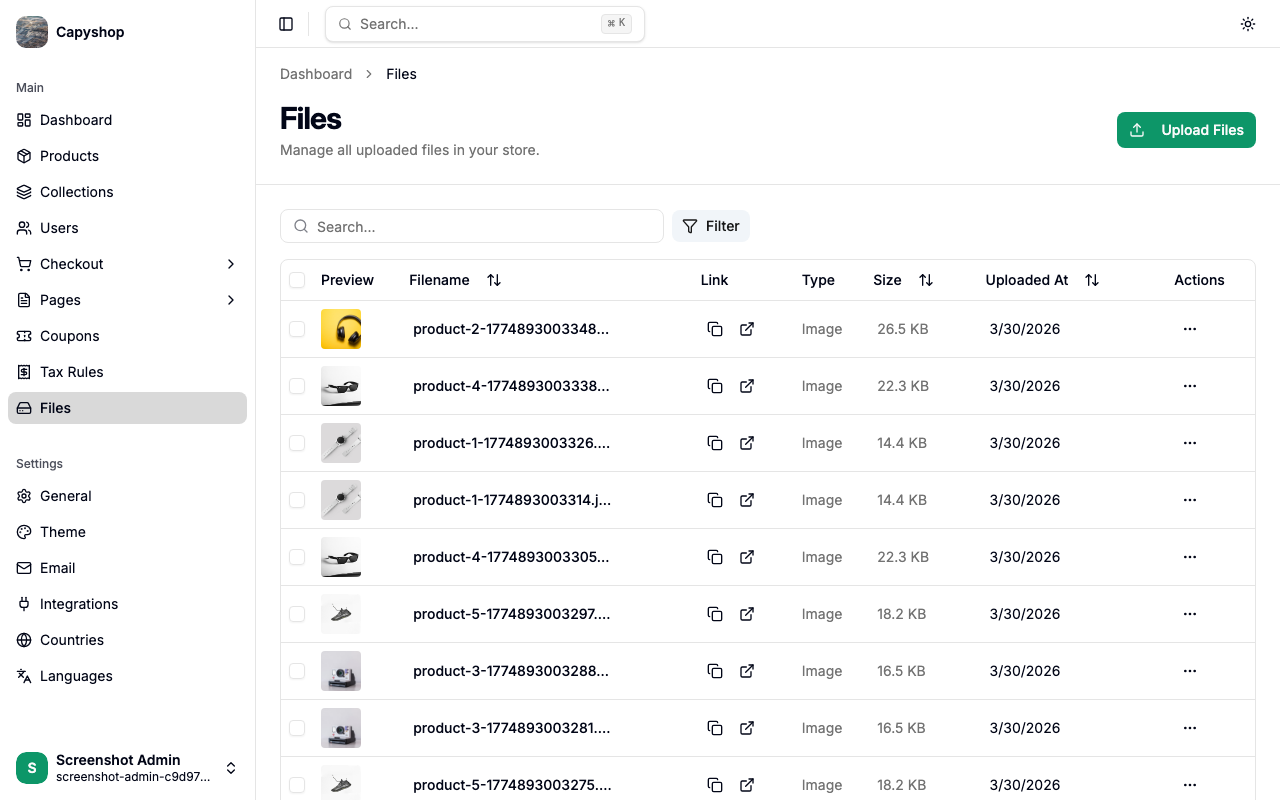
| Column | Description |
|---|---|
| Preview | Thumbnail of the file (images show the actual image) |
| Filename | The stored file name (click the copy icon to copy the file's link) |
| Link | Copy the file URL or open it in a new tab |
| Type | File category — Image, Video, Audio, PDF, or Document |
| Size | File size in human-readable format (KB, MB) |
| Uploaded At | Date the file was uploaded |
You can sort by clicking the Filename, Size, or Uploaded At column headers, and search by typing in the search bar at the top. Use the Filter button to narrow results by file type.
Uploading files
Click the Upload Files button in the top-right corner to open the upload dialog. You can drag and drop files or click to browse your computer. Multiple files can be uploaded at once.
Supported formats include images (PNG, JPEG, SVG, WebP), videos, audio, PDFs, and other common document types.
Important: Images are limited to 5 MB per file. Uploaded images are automatically pre-processed — optimized and resized — to reduce their file size, ensuring your pages load faster and boosting your SEO rankings.
Bulk actions
Select one or more files using the checkboxes on the left, then use the bulk actions bar that appears at the bottom:
- Delete — permanently remove selected files (a confirmation dialog will appear)
Per-file actions
Click the ... menu on any row to access individual file actions:
- Delete — permanently remove this file
Important: Deleting a file is permanent and cannot be undone. If the file is used by a product, collection, or page section, those references will break.
Storage modes
Capyshop supports two storage backends for uploaded assets, selected at deploy time via the ASSETS_STORAGE_MODE environment variable.
- Local (default) — files are written to
data/files/inside the application container and served directly by the app. Image variants are generated on the fly and cached indata/files/.cache/. - S3 — files are uploaded to an S3-compatible bucket (AWS S3, Cloudflare R2, Backblaze B2, MinIO, etc.) and served from a CDN. When you upload a new image, optimized WebP variants at common widths (200/400/600/800/1200) are pre-generated and stored alongside the original, so the storefront serves correctly-sized images without any runtime conversion.
An optional ASSETS_MAX_BYTES setting caps the cumulative storage footprint across both modes — useful for keeping bucket bills predictable on shared hosting. Per-upload caps (5 MB image / 50 MB video) are independent of this setting.
See Docker Deployment for the full list of S3 environment variables and the one-shot script for migrating an existing local-mode store to S3.